Technician Activity Guide
This guide shows technicians how to accept jobs, sign in and out of sites, update job information, and manage asset conditions through email-based workflows.
Overview
The Technician Activity system allows field technicians to manage their jobs through email-based workflows without needing to log into the main system. This provides a streamlined mobile experience for on-site work.
Technician Workflow
No Login Required: Technicians can complete most tasks through email links without needing to log into the main Facilitease system. All actions are tracked and recorded automatically.
Job Acknowledgement Email
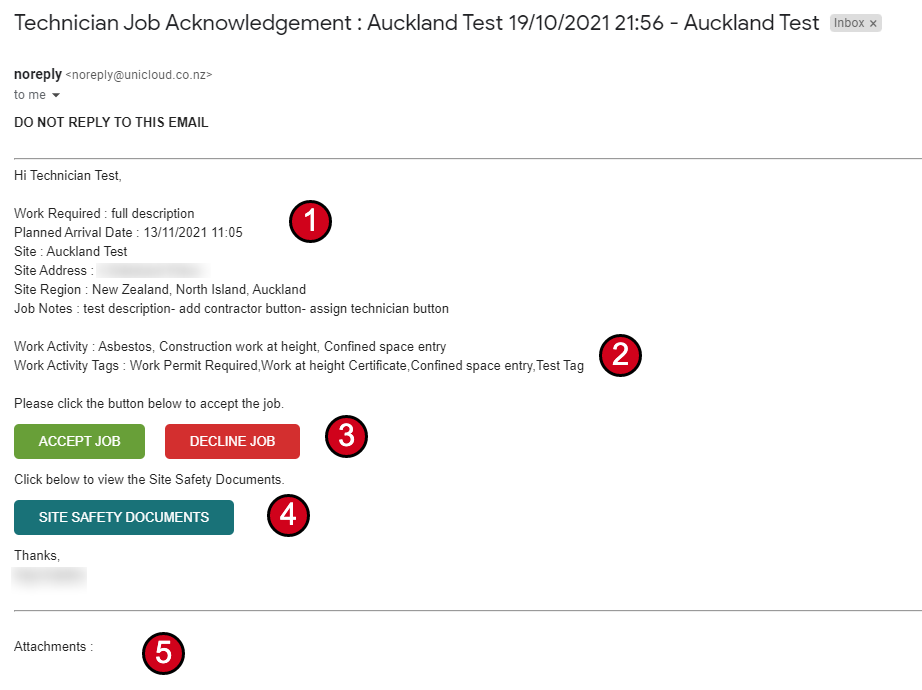
After a Contractor Administrator assigns a job to a technician, the technician receives an acknowledgement email. This allows them to review job details and site hazards before accepting.
Please click the button below to accept the job.
Click below to view the Site Safety Documents.
Attachments: [Job documents]
Email Contents
| Section | Description |
|---|---|
| Job Details | Work required, planned arrival, site name, address, and region |
| Work Activity | Types of work and any permit/clearance requirements |
| Accept/Decline | Buttons to accept or decline the job assignment |
| Site Safety Documents | Link to view safety documents (requires sign-in) |
| Attachments | Any documents attached to the job |
Accepting a Job
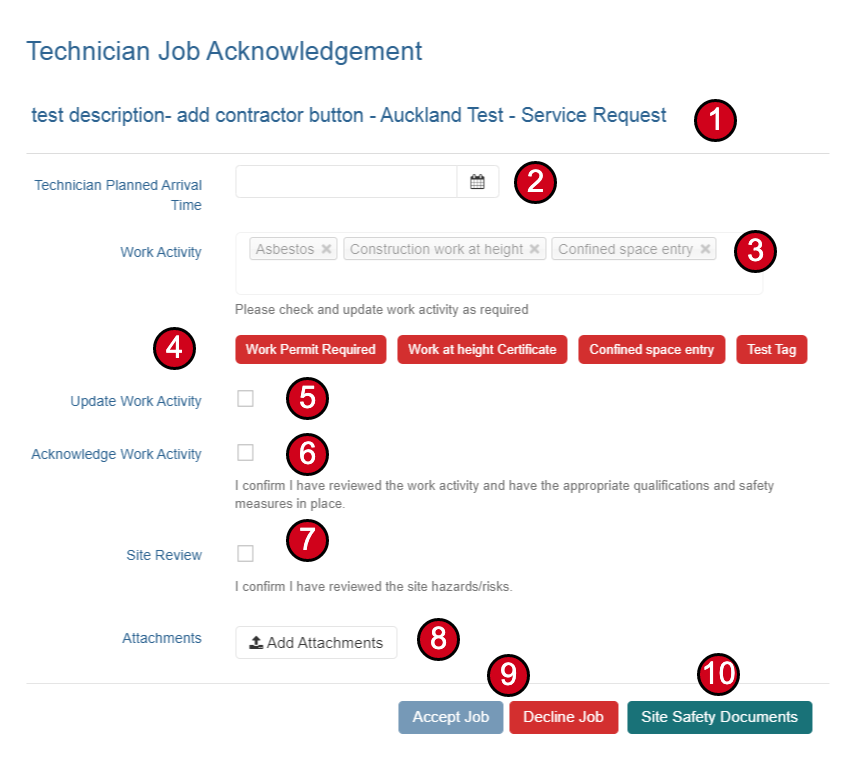
Clicking the Accept button in the acknowledgement email takes you to the job acceptance form.
Acceptance Form Fields
- Review Job Details - Check the site name, planned arrival date/time, and work requirements.
- Review Work Activity - Check the work activities and any required permits/clearances. These can be modified if needed by checking "Update Work Activity".
- Acknowledge Requirements - Confirm that you have the appropriate qualifications and safety measures in place for the work activity.
- Confirm Site Hazard Review - Confirm that you have reviewed the site hazards and risks.
- Add Attachments - Upload any required documents or certifications.
- Accept the Job - Click Accept Job to confirm acceptance.
Declining a Job
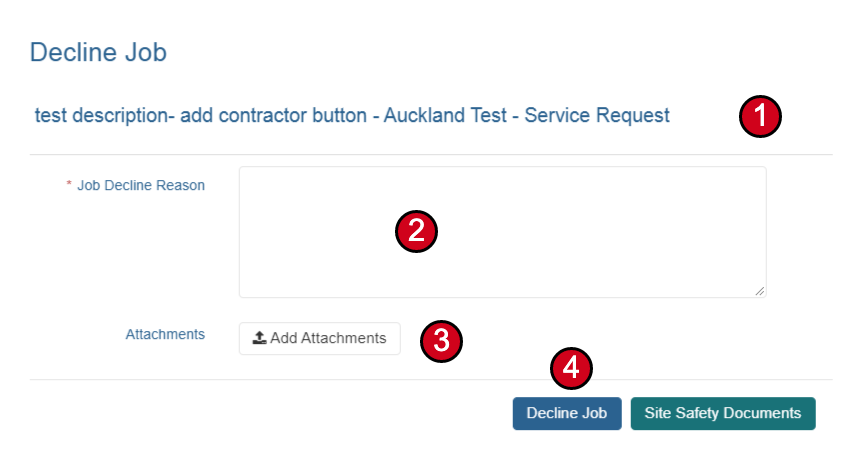
If you cannot complete a job, you can decline it with a reason. This notifies the Contractor Administrator so they can reassign the work.
Decline Reason Required: You must provide a reason when declining a job. This helps the Contractor Administrator understand the issue and make appropriate arrangements.
Sign In Email
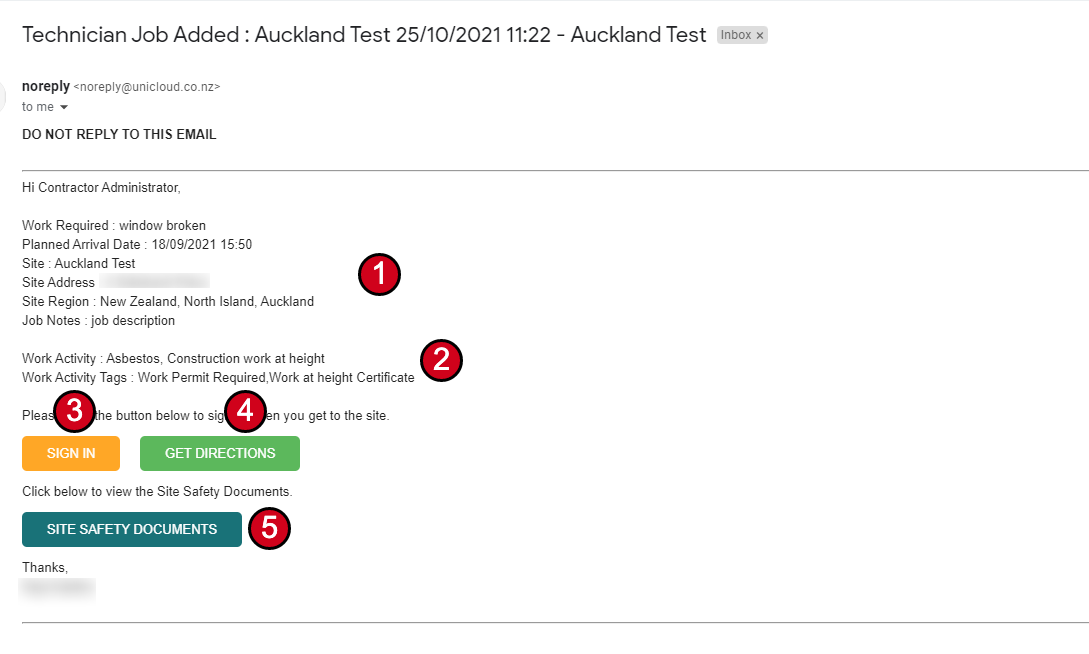
Once a job has been assigned to a technician, they receive a sign-in email with links to sign into the site when they arrive.
Please click the button below to sign in when you get to the site.
Click below to view the Site Safety Documents.
Email Actions
- Sign In - Opens the sign-in form to record your arrival on site
- Get Directions - Opens maps with directions to the site
- Site Safety Documents - View safety documentation (requires login)
Signing In to Site
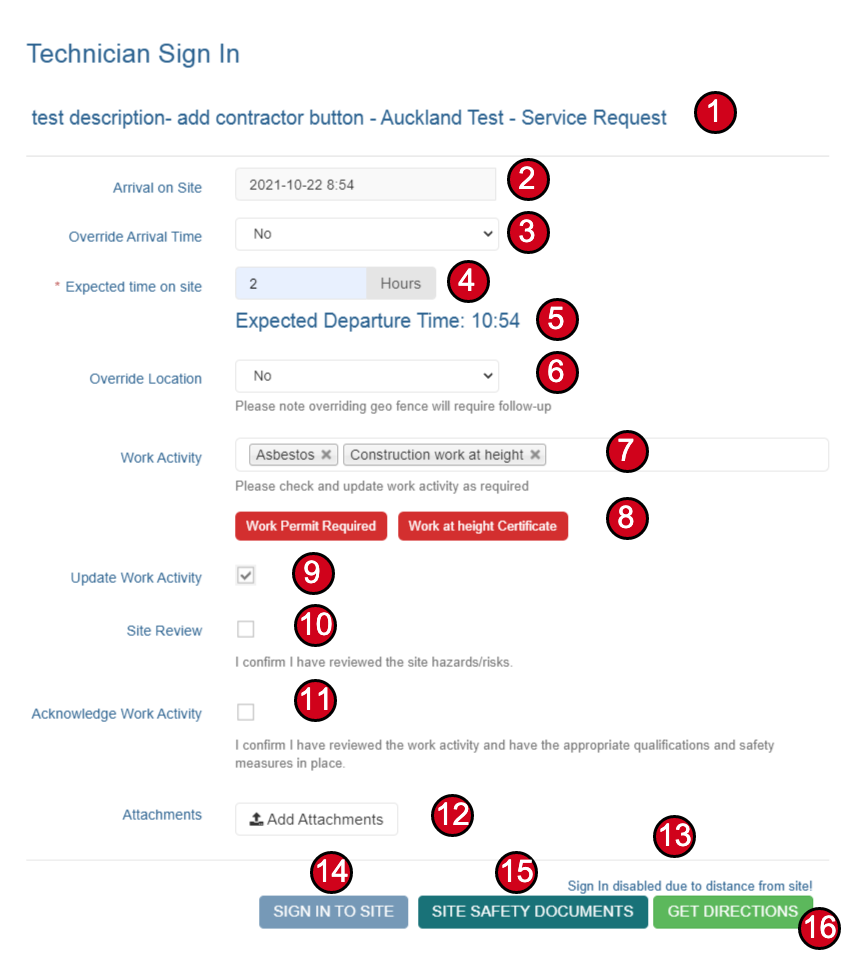
The sign-in form records your arrival and expected time on site. It includes safety acknowledgements and geo-location verification.
Expected Departure Time: 10:54
Please note overriding geo fence will require follow-up
You must be within 0.5km of the site to sign in, or override the location.
Sign-In Requirements
Geo-Location Verification: The sign-in button is only enabled when you are within 0.5km of the site. If you need to sign in from further away, you can override the location but must provide a reason. The system captures your actual location regardless.
| Field | Description |
|---|---|
| Arrival on Site | Auto-populated with current time; can be overridden if needed |
| Expected time on site | Enter number of hours (supports decimals like 1.5) |
| Expected Departure Time | Automatically calculated based on arrival and expected hours |
| Override Location | Use if geo-location fails or you need to sign in remotely |
| Work Activity | Can be updated if the scope has changed |
| Site Review | Confirm you have reviewed site hazards/risks |
| Acknowledge Work Activity | Confirm qualifications and safety measures are in place |
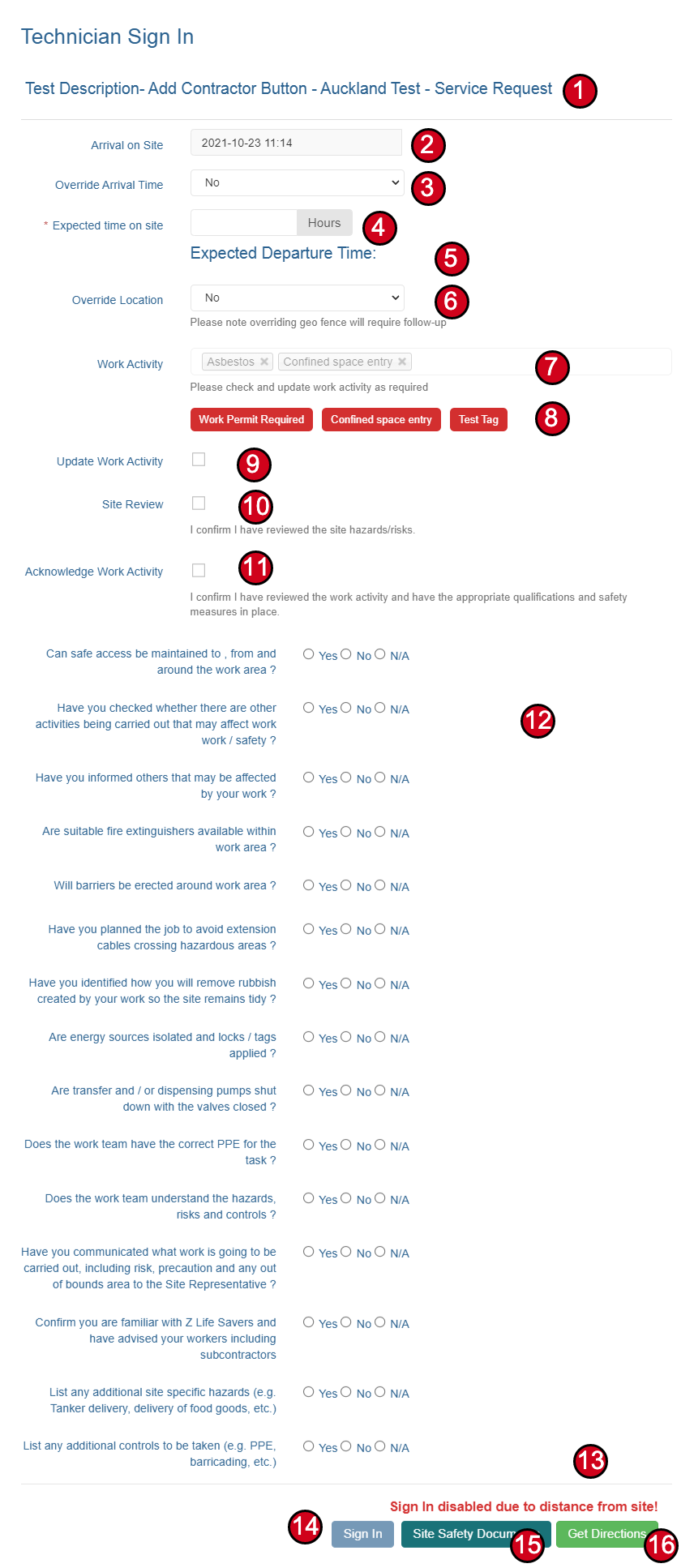
Pre-Start Questions
If your system administrator has configured pre-start questions, these must be answered before you can sign in. Questions can be filtered by Division, Group, Site, or Service Type.
Answer Recording: All answers to pre-start questions are stored against the technician activity record and can be viewed at any time. This captures both the question and the answer exactly as they were at the time.
Update Time & Sign Out Email
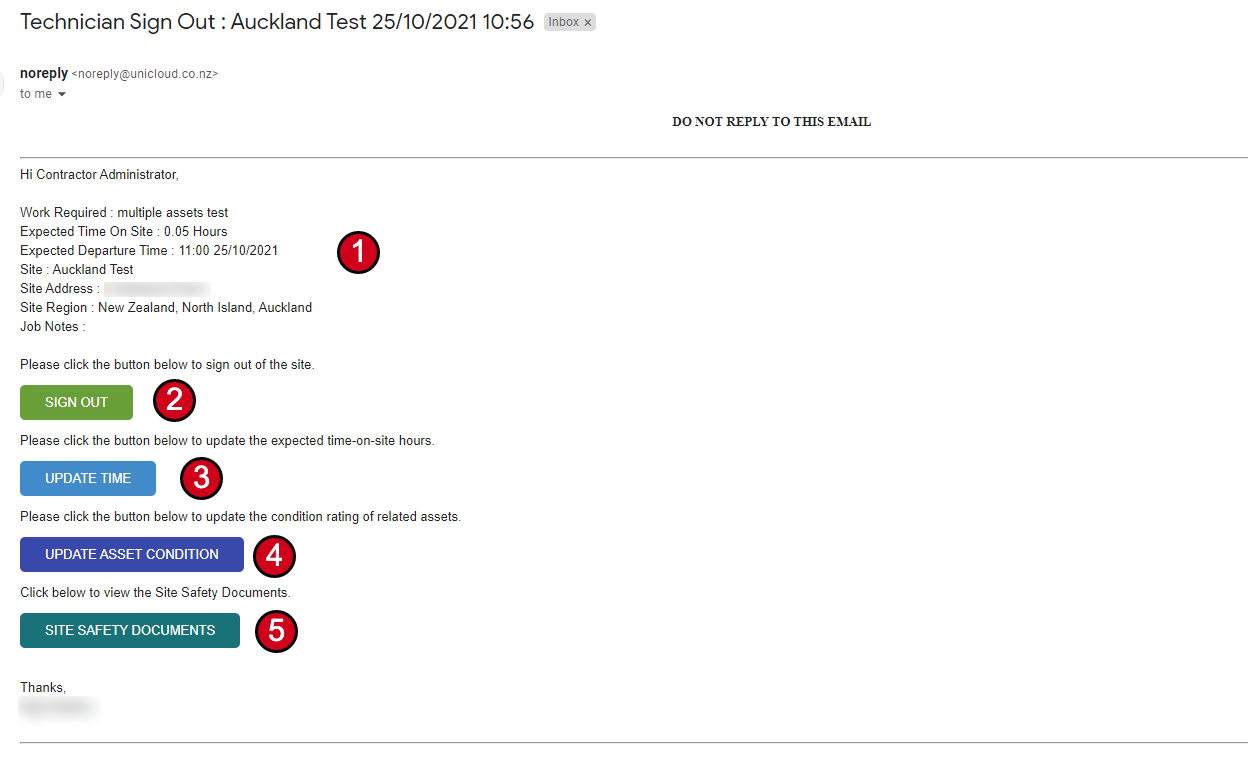
Once signed in, you receive a second email with options to update your time on site, update asset conditions, or sign out.

Please click the button below to sign out of the site.
Please click the button below to update the expected time-on-site hours.
Please click the button below to update the condition rating of related assets.
Click below to view the Site Safety Documents.
Updating Time on Site
If you need more time than originally estimated, click the Update Time button:

Expected Departure Time: 14:34
Updating Asset Condition
While on site, you can update the condition assessment for assets attached to the job. This link only works while the main contractor job is active.
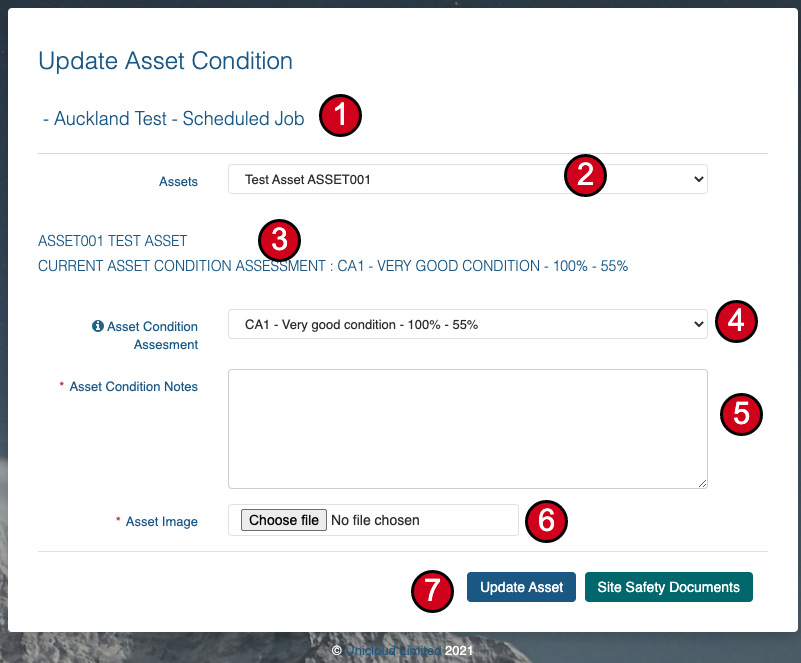
Asset Condition Ratings
CURRENT ASSET CONDITION ASSESSMENT: CA1 - VERY GOOD CONDITION - 100% - 55%
Photo & Notes Required: When updating an asset condition, you must provide notes and a photo to document the change. This updates the condition in the main asset record.
Signing Out of Site
When you've completed work, use the sign-out form to record your departure, travel time, parts costs, and any return visits needed.
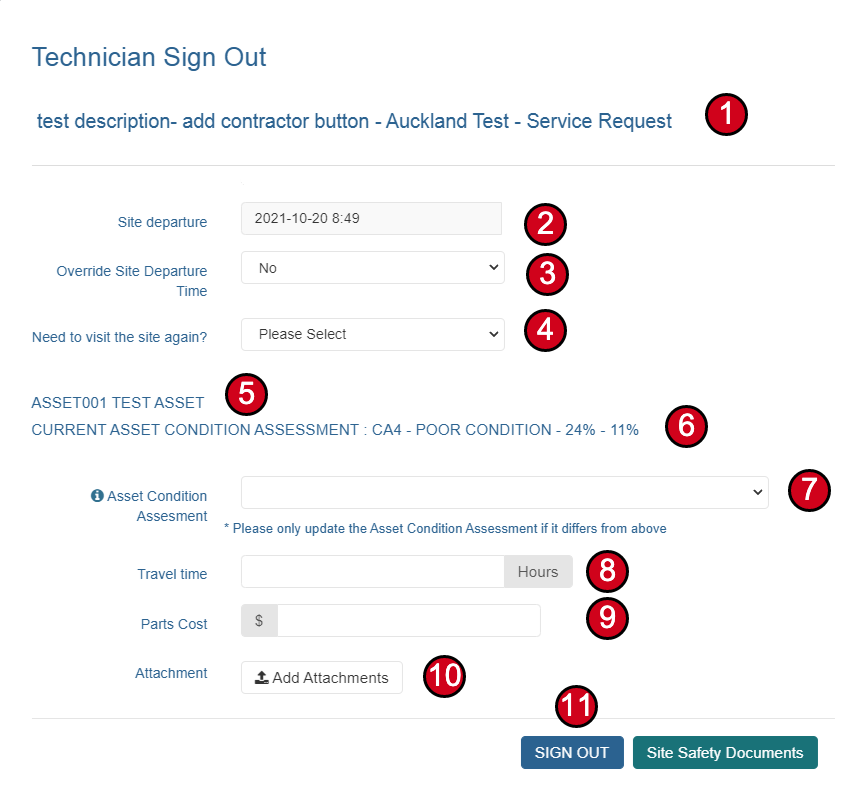
CURRENT ASSET CONDITION ASSESSMENT: CA4 - POOR CONDITION - 24% - 11%
Sign-Out Fields
| Field | Description |
|---|---|
| Site Departure | Auto-populated with current time; can override if needed (e.g., forgot to sign out) |
| Need to visit again? | If Yes, a new sign-in email will be sent for the return visit |
| Asset Condition | Update if condition is different from what's recorded (requires photo and notes) |
| Travel time | Optional: Record travel time in hours |
| Parts Cost | Optional: Record any parts costs |
| Attachments | Upload any completion photos or documentation |
Geo-Location Capture: Your location is captured at sign-out if available, regardless of whether you've overridden the location requirement.
Job Overdue Email
If you remain on site past your expected departure time, an overdue notification email is sent. This can also be configured to notify other users.
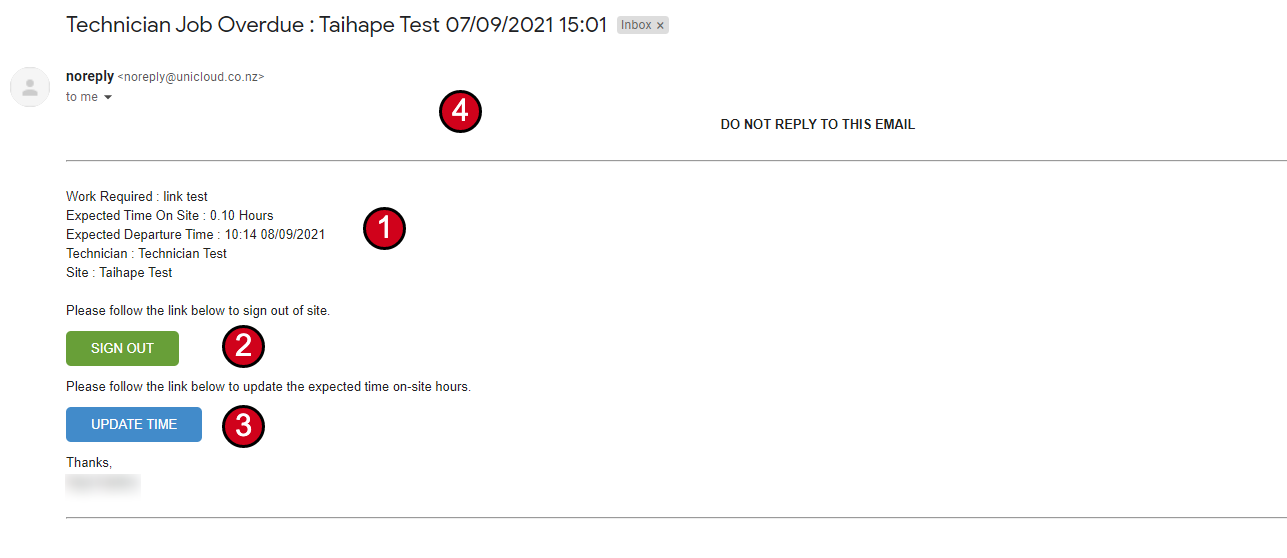
Please follow the link below to sign out of site.
Please follow the link below to update the expected time-on-site hours.
Contractor & Technician Dashboards
In addition to email-based workflows, Contractor Administrators and Technicians can use internal dashboards to manage jobs.


Contractor Admin Dashboard
Pending Jobs List
Technicians Onsite
Technician Internal Dashboard
Technicians who are logged in can view and manage their jobs through an internal dashboard:

Internal vs External: Technicians don't need to be signed in to interact with jobs via email. However, if logged in, the internal dashboard buttons work the same way as the external email forms.