Bulk Print QR Labels
Generate and print QR code labels for multiple assets at once for easy scanning and service request logging.
Overview
QR labels allow users to quickly log service requests by scanning an asset's QR code with their mobile device. The bulk print feature enables you to generate labels for multiple assets at once, saving time when deploying QR codes across a site or facility.
QR Code Benefits:
- Instant asset identification - no manual lookup required
- Quick service request logging from mobile devices
- Reduce data entry errors
- Track asset location and service history
Note: Softphone functionality must be set up from an external provider and the module installed before QR code scanning features can be used with phone-based service requests.
Select Site and Assets
First, navigate to the site and select the assets you want to print QR labels for.
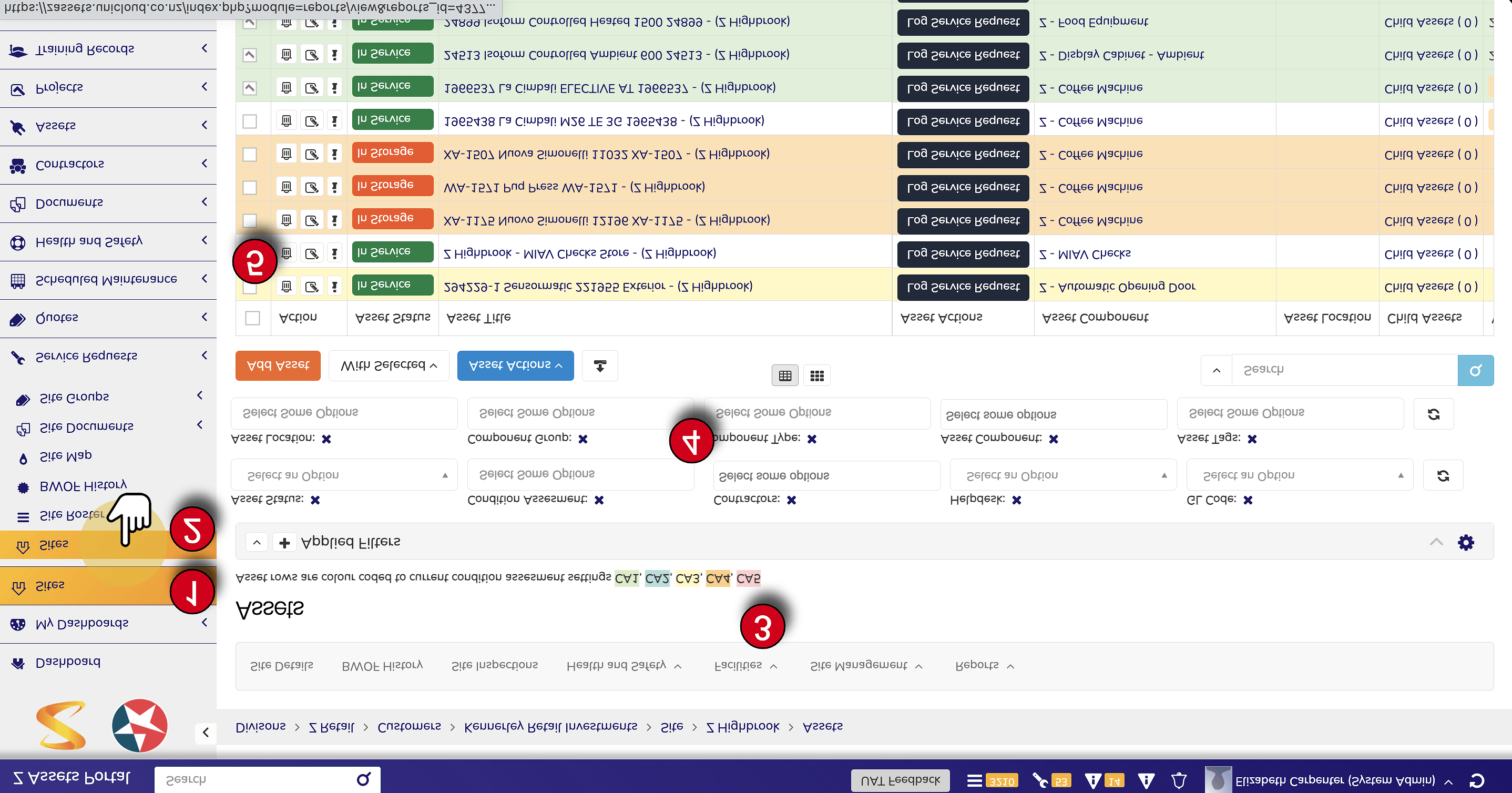
- Activate Sites Dropdown - Click on the Sites dropdown menu in the main navigation.
- Select Site - Choose the site containing the assets you want to print labels for from the dropdown menu.
- Navigate to Assets - From the Facilities menu, select the Assets page to view all assets at the selected site.
- Filter Your List (Optional) - Use the available filters to narrow down the asset list as required. You can filter by:
- Asset Status
- Asset Location
- Condition Assessment
- Component Group
- Component Type
- Contractors
- Helpdesk
- Asset Component
- Asset Tags
- Select Assets - Select the assets you wish to print QR codes for. You can:
- Select individual assets - Click the checkbox next to each asset
- Select all in list - Click the checkbox in the header row to select all visible assets
Asset Color Coding: Asset rows are colour coded to current condition assessment settings (CA1, CA2, CA3, CA4, CA5). This helps you quickly identify assets that may need attention when selecting which ones to print labels for.
Select Print Option
After selecting the assets, use the bulk action menu to generate QR labels.
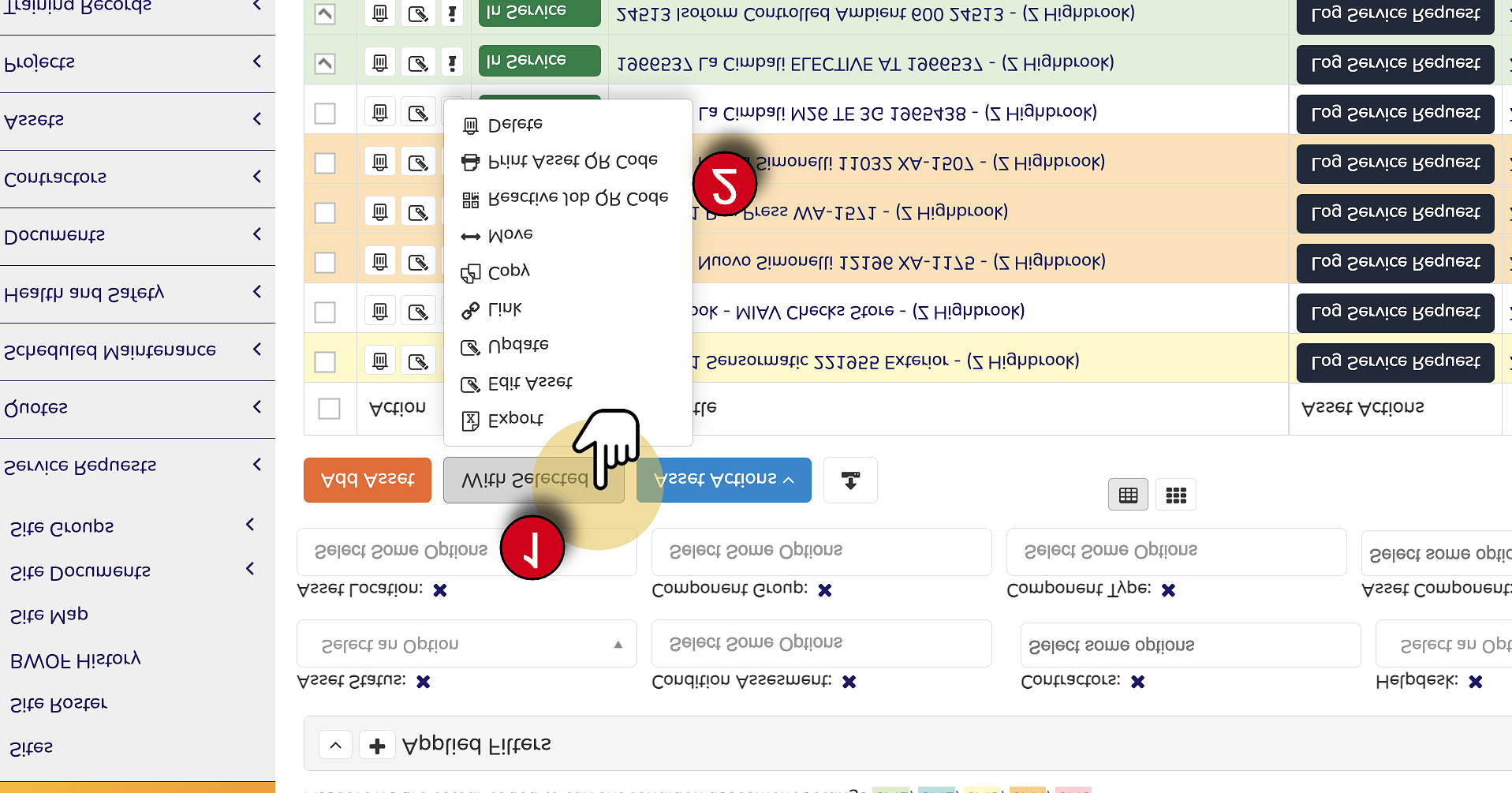
- Click "With Selected" - Click on the With Selected button in the toolbar above the asset list. This opens a dropdown menu of bulk actions.
- Select Label Type - Choose the type of QR label you wish to print from the menu:
- Reactive Job QR Code - For logging reactive service requests
- Print Asset QR Code - Standard asset identification label
- Download/Print Labels - The system will generate a PDF document containing QR labels for all selected assets. You can then print this document to label sheets.
Available Bulk Actions
The "With Selected" menu provides several options for managing multiple assets:
| Action | Description |
|---|---|
| Export | Export selected assets to a spreadsheet file |
| Edit Asset | Open the edit form for selected assets |
| Update | Bulk update fields across selected assets |
| Link | Link selected assets to other records |
| Copy | Create copies of selected assets |
| Move | Move selected assets to a different location |
| Reactive Job QR Code | Print QR codes for logging reactive service requests |
| Print Asset QR Code | Print standard asset identification QR labels |
| Delete | Delete selected assets (requires appropriate permissions) |
Label Types
FacilitEase offers two types of QR labels depending on your use case:
Option 1 Reactive Job QR Code
Use this option when you want users to be able to quickly log a service request for the asset by scanning the code.
Best For:
- Equipment that may require reactive maintenance
- Assets in high-traffic areas
- Enabling non-technical staff to report issues
- Quick fault reporting
When Scanned:
Opens the service request form pre-populated with asset details, allowing the user to describe the issue and submit.
Option 2 Print Asset QR Code
Use this option for general asset identification and information access.
Best For:
- Asset tracking and inventory
- Technician reference during maintenance
- Viewing asset history and specifications
- Compliance and audit purposes
When Scanned:
Opens the asset details page showing all information including specifications, service history, and documentation.
Printing Tips:
- Use high-quality label paper for durability
- Test scan a few labels before mass deployment
- Consider weatherproof labels for outdoor assets
- Position labels where they're easily accessible but won't interfere with equipment operation
- Keep a record of which assets have been labelled