Send SMS on Service Request
Learn how to send SMS messages directly from a service request to quickly communicate with contacts, and view SMS history.
Overview
Facilitease allows you to send SMS messages directly from a service request. This feature enables quick communication with site contacts, tenants, or other stakeholders about service request updates.
SMS Costs: Sending SMS through Facilitease costs approximately 12-15 cents per message. This is charged to your account.
Key Features
- Auto-populated Fields - Recipient details are automatically filled from the service request contact information
- Quick Copy - Easily copy the full description from the service request to your SMS
- SMS History - Track all SMS messages sent for each service request
- Flexible Messaging - Customize the recipient and message content as needed
Sending an SMS
To send an SMS from a service request, follow these steps:
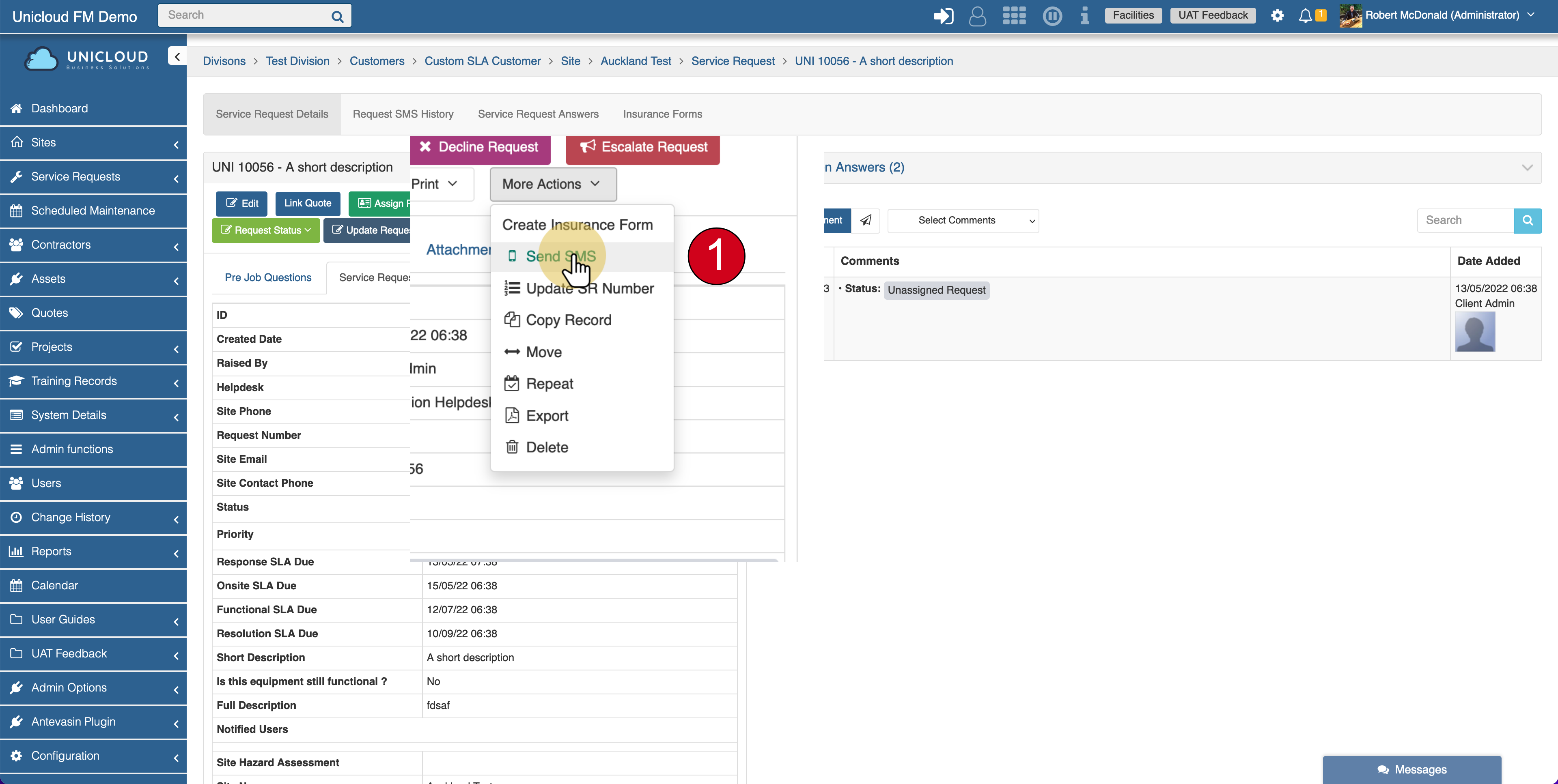
- Open the Service Request - Navigate to the service request you want to send an SMS about
- Access More Actions - Click on More Actions dropdown button
- Click Send SMS - Select Send SMS from the dropdown menu
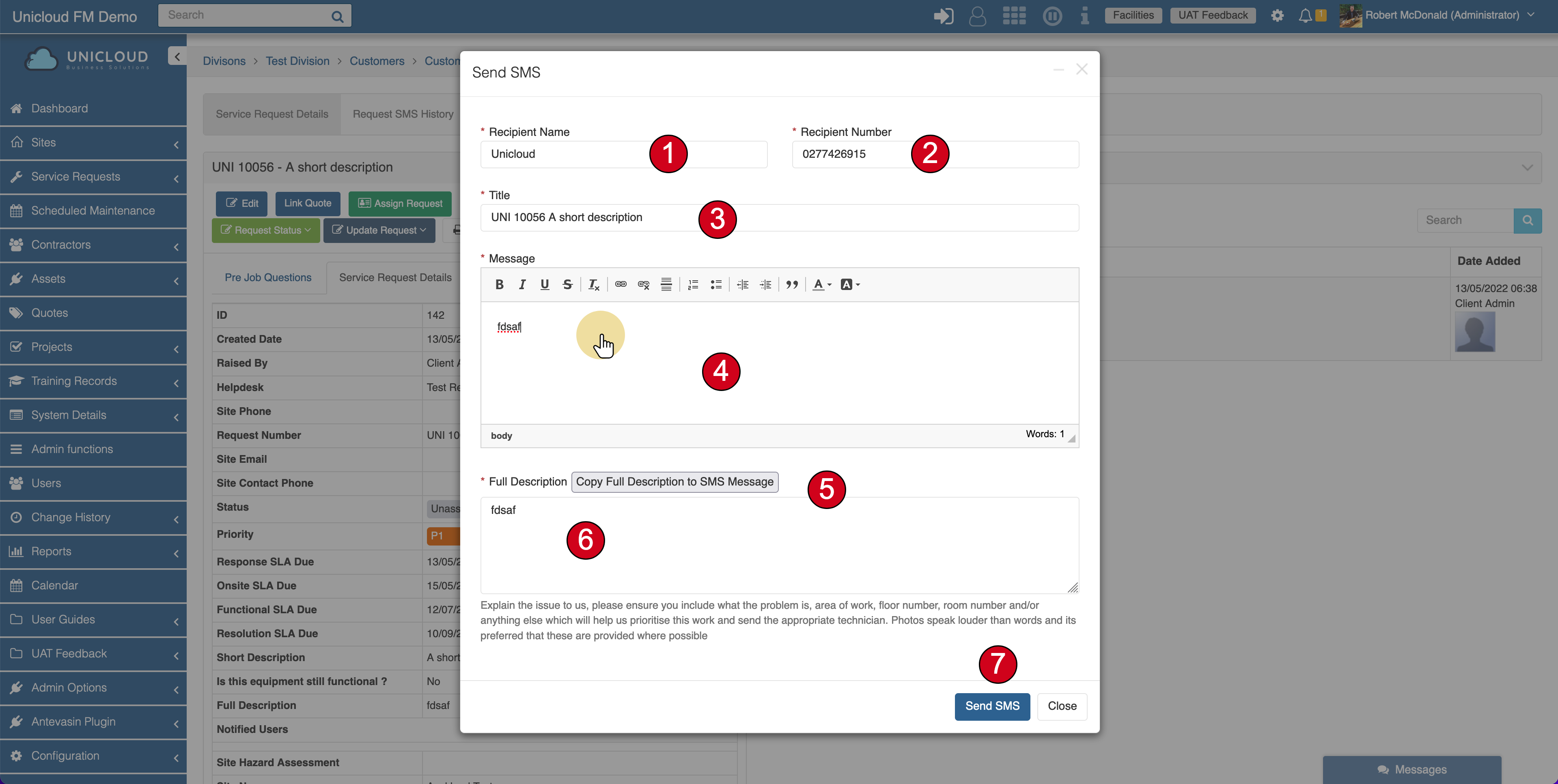
SMS Message Details
When the Send SMS dialog opens, you'll see several fields to complete:
Field Descriptions
- Recipient Name - Field will populate from the Contact Name on the request but can be changed for the SMS
- Recipient Number - Field will populate from the Contact Number on the request but can be changed for the SMS
- Title - Will populate from the request short description but can be changed
- Message - Enter your SMS message content here
- Copy Full Description Button - Click this button to quickly copy the current full description of the request to the SMS message field
- Full Description (Reference) - Displays the current full description in the service request for reference
- Send SMS Button - Click to send the SMS message
Quick Tip: Use the "Copy Full Description to SMS Message" button to quickly include all the service request details in your SMS without having to retype them.
View SMS History
You can view the history of all SMS messages sent for a service request:
- Go to Service Request - Navigate to the service request you want to check
- Click Request SMS History Tab - The tab will show if any SMS has been sent. The history panel is collapsed by default - click to expand and view sent SMS messages.
- View SMS History - You'll see a list of all SMS messages sent for this request, including:
- Date Added
- Created By
- Recipient Name
- Recipient Number
- Message Title and Content

Received SMS
When an SMS is sent, the recipient will receive a text message on their mobile phone with the title and message content you entered.
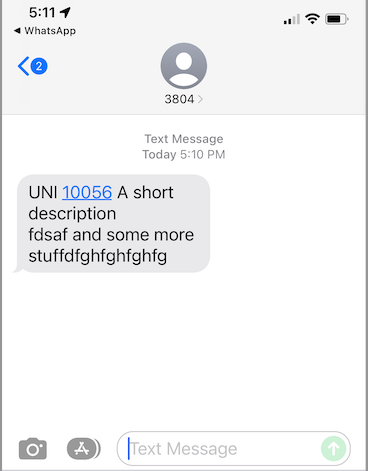
Cost Reminder: Remember that sending SMS through Facilitease will cost 12-15 cents per message. Consider using email notifications for non-urgent communications to reduce costs.
Best Practices
- Keep messages concise - SMS messages should be brief and to the point
- Include the request number - Always include the service request number for reference
- Verify the phone number - Double-check the recipient number before sending
- Use for urgent communications - SMS is best for time-sensitive updates
- Check SMS history - Review the history to avoid sending duplicate messages