Scheduled Maintenance
Set up and manage periodic/scheduled tasks and asset servicing including heat pumps, lawn maintenance, fire systems, and compliance inspections.
In This Guide
Overview
Scheduled Jobs is a system function designed to store and manage all your periodic/scheduled tasks/activity, such as:
- Heat Pump/Air Con Servicing
- Lawn & Garden Maintenance
- Fire Alarm Systems & Equipment
- Home owner checks
- Building Compliance Inspections
This particular activity is vastly different from your regular service requests as they are structured and monitored/managed in a different manner. Think of the Scheduled Job as a 'Template' of sorts - you set it up with all the relevant detail including frequency, type (Serviceable Asset or Inspection only), and apply the required Subcontractor.
Asset Linking: If you are adding a Scheduled Job for a Serviceable Asset, you can relate the asset to the job which in turn keeps all the service history linked to the asset itself while still capturing all the relevant subcontractor and technician activity.
Job Categories
| Category | Description | Example |
|---|---|---|
| Serviceable Asset | For physical assets in the system that you are servicing | Heat Pump, Fire Alarm, HVAC System |
| Scheduled Task | For recurring tasks where there is no physical asset | Lawn Maintenance, Window Cleaning |
Operational Workflow
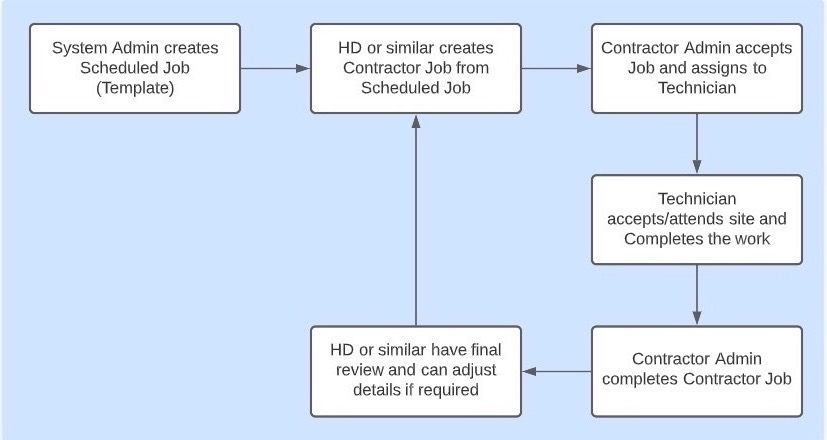
This is a brief overview of the operational workflow of a Scheduled Job:
Creates Scheduled Job (Template)
Creates Contractor Job from Scheduled Job
Accepts Job and assigns to Technician
Accepts, attends site and completes work
Contractor Admin completes job, HD reviews
Adding a New Scheduled Job
Permission Required: Only a System Administrator can create a new Scheduled Job.
-
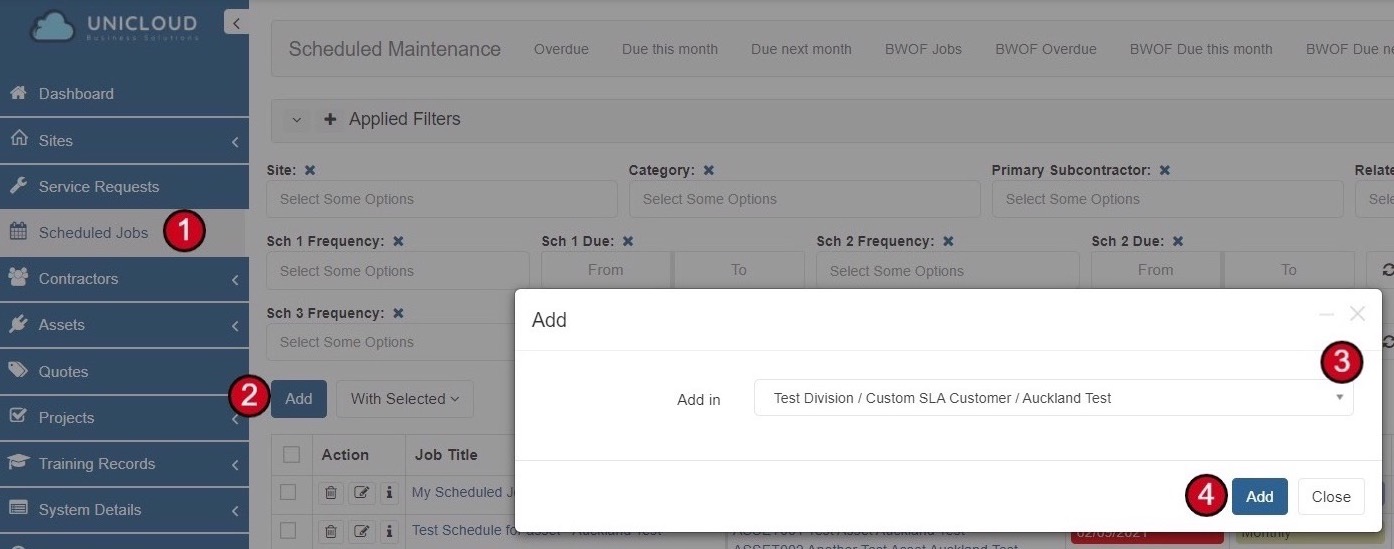
Navigate to Scheduled Jobs
Select Scheduled Jobs from the side menu
-
Click Add
Click the Add button to create a new scheduled job
-
Select Site/Property
Select the relevant site or property for this scheduled job
-
Confirm
Click Add to proceed to the job details
Scheduled Job Details - Page 1
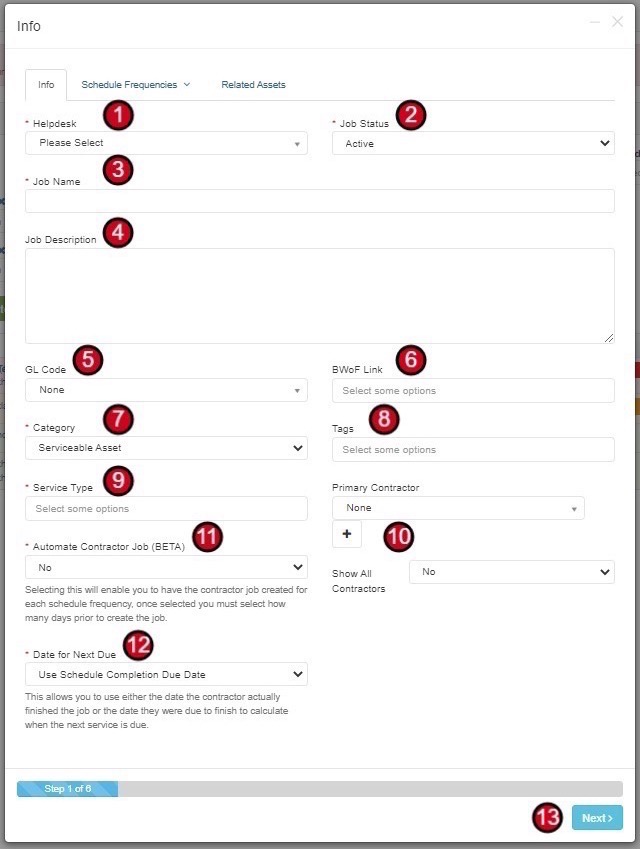
Configure the basic information for your scheduled job:
-
Select Helpdesk
Select the relevant Helpdesk for this job
-
Set Job Status
Apply your Scheduled Job Status - this would normally be Active by default
-
Enter Job Name
Give your Scheduled Job a Name. This could be as brief as "Heat Pump Servicing" or "Lawn Maintenance"
-
Add Job Description
Add the Job description. This detail will carry over to the contractor job so include task details/scope of work for the contractor here
-
GL Code (Optional)
Add GL Code if relevant for financial tracking
-
BWoF Link (Optional)
Add BWoF link if this scheduled job is linked to a Building Warrant of Fitness
-
Select Category
Apply the Scheduled Job category:
- Serviceable Asset - for physical assets in the system
- Scheduled Task - for recurring tasks with no physical asset
-
Add Tags (Optional)
Add any Tags if applicable for filtering and organization
-
Select Service Type
Add the Service Type - this will start filtering through the list of available contractors
-
Select Primary Contractor
Select the Primary contractor for this Scheduled Job
-
Auto Create Contractor Jobs (BETA)
Answer Yes or No if you want this Scheduled Job to automatically create the Contractor Job when it's due
-
Date for Next Due
Choose which of the contractor job completion dates you wish to use to calculate the 'Next Due' dates:
- Use Schedule Completion Due Date - uses the date the job was due to finish
- Use Actual Completion Date - uses the date the contractor actually finished
-
Click Next
Proceed to the Schedule Frequencies page
Scheduled Job Details - Page 2 (Schedule Frequencies)
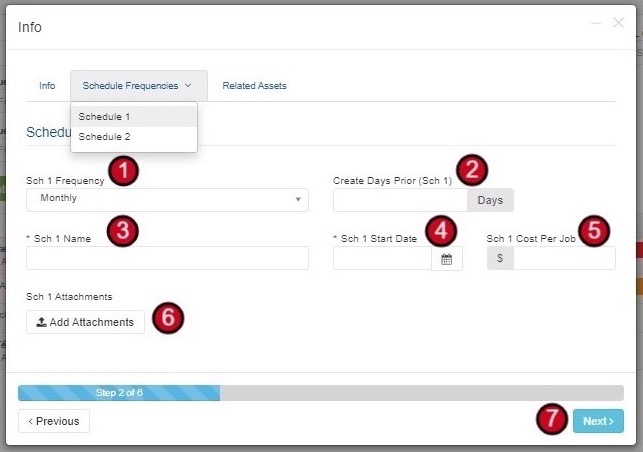
Configure the frequency and timing of the scheduled job:
-
Select Schedule Frequency
Select your Schedule 1 frequency (e.g., Monthly, Quarterly, Annual)
-
Create Days Prior (if Auto Create is on)
If 'Auto create Contractor Jobs' is turned on, select how many days prior to the due date you want the system to create the new record
-
Schedule Name
Give this Schedule a Name - could be as simple as "Monthly Lawn Maintenance"
-
Set Start Date
Apply the Scheduled Job Start Date
Important: When adding the start date, you need to back date it. For example, if you want the next schedule for an Annual Service to be done in October 2022, then add a start date of October 2021.
-
Cost Per Service (Optional)
Add the costs per service if applicable - this helps with forecasting an annual budget for Scheduled Maintenance
-
Attachments (Optional)
Add any attachments if relevant - these attachments will go to the contractor
-
Click Next
Proceed to the Related Assets page
Multiple Schedules: If you want to add more than one Schedule, click on the Scheduled Frequencies tab and select Sch 2, 3, 4 as required. 4 schedules is the maximum.
Scheduled Job Details - Page 3 (Related Assets)
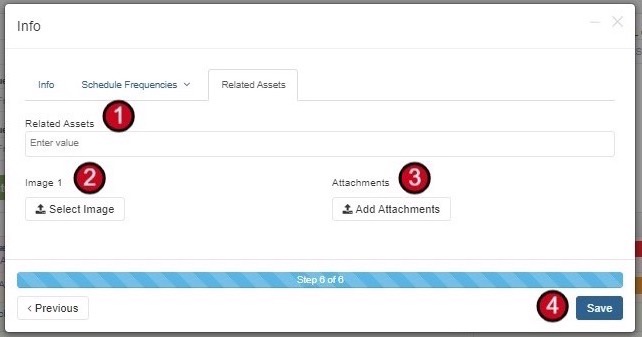
If you selected "Serviceable Asset" as the category, configure the asset details:
-
Select Related Assets
If you have selected a Scheduled Job Category of Serviceable Asset, you will be required to add the details of the asset here. This list will only show you Assets that are currently active for that particular site. Select all that are relevant.
-
Asset Images (Optional)
Add any Asset Images if required
-
Attachments (Optional)
Add any Attachments if required
-
Click Save
Your new Scheduled Maintenance Job has now been created and is ready for use
Asset Bundling Best Practice: If you are adding more than one asset to a Scheduled Job, we recommend you do not add multiple assets that have different Asset Types. For example, you would not bundle together an Electrical Asset with a Sprinkler system asset. However, you could bundle together multiple Sprinkler Assets located at one property.
Editing a Scheduled Job
If you have made an error or wish to change any of the detail, use the 'Edit' button from inside the Scheduled Job.
The next step from here is for the HelpDesk or Contact Centre to create the Contractor Job from this Scheduled Job as and when they become due.
Creating Contractor Service Jobs
Who Can Create: Only a System Administrator or a HelpDesk can create a Scheduled Service Request.
This can be done either one Scheduled Job at a time or in bulk where you have the same frequency type, Asset type, and Subcontractor.
Creating a Single Contractor Service Job
-
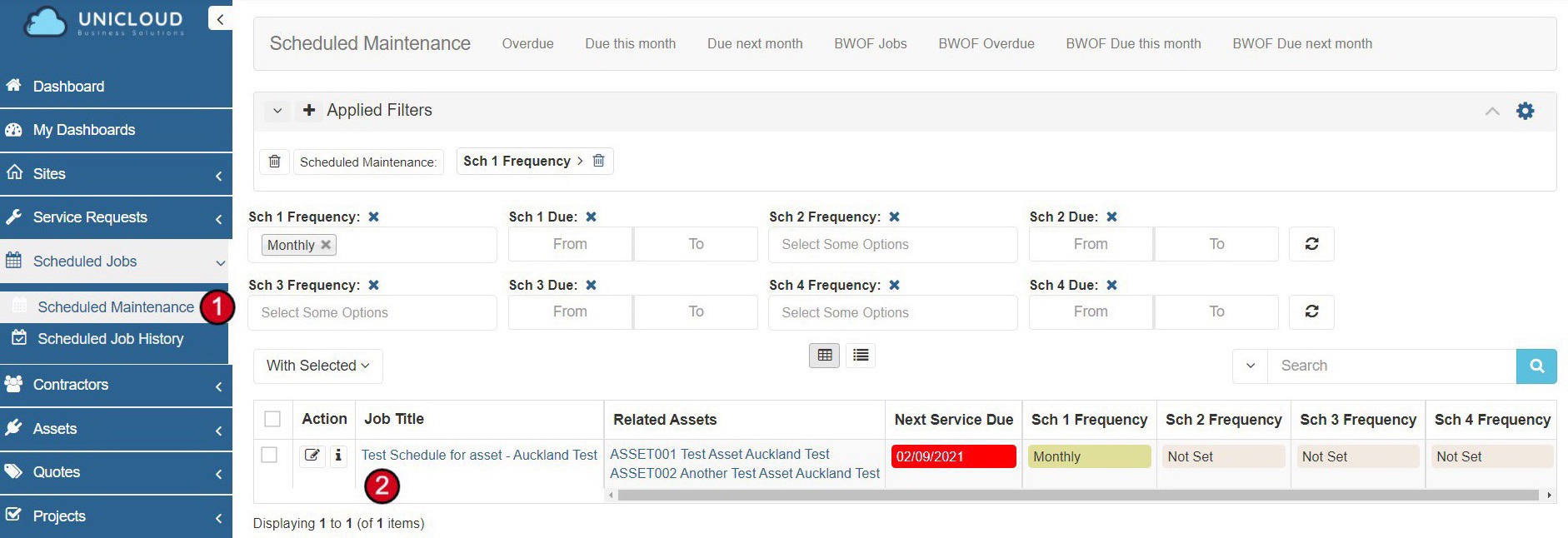
Navigate to Scheduled Maintenance
Select Scheduled Maintenance from the side menu
-
Select the Scheduled Job
Choose the Scheduled Job you wish to create the Contractor Job for
-
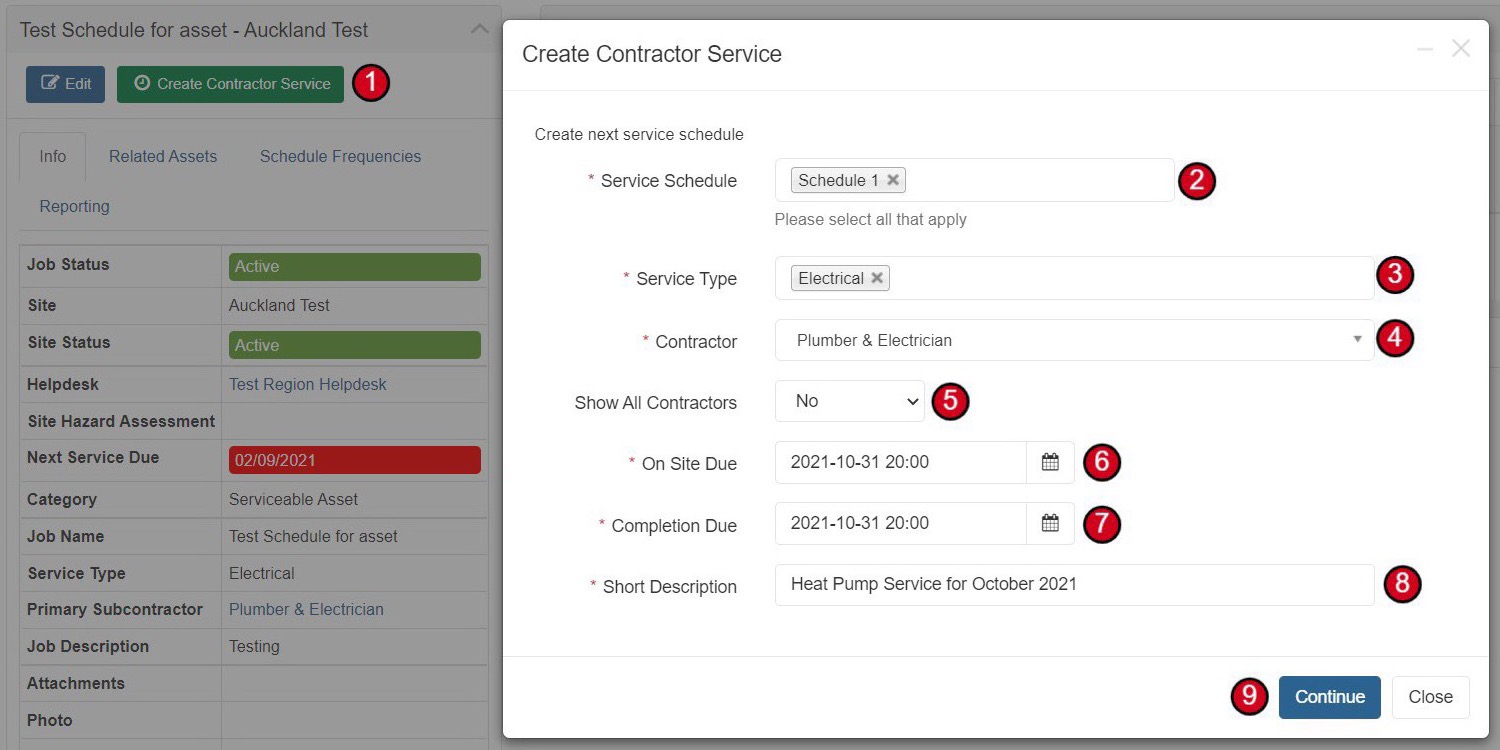
Click Create Contractor Service
Click on Create Contractor Service button
-
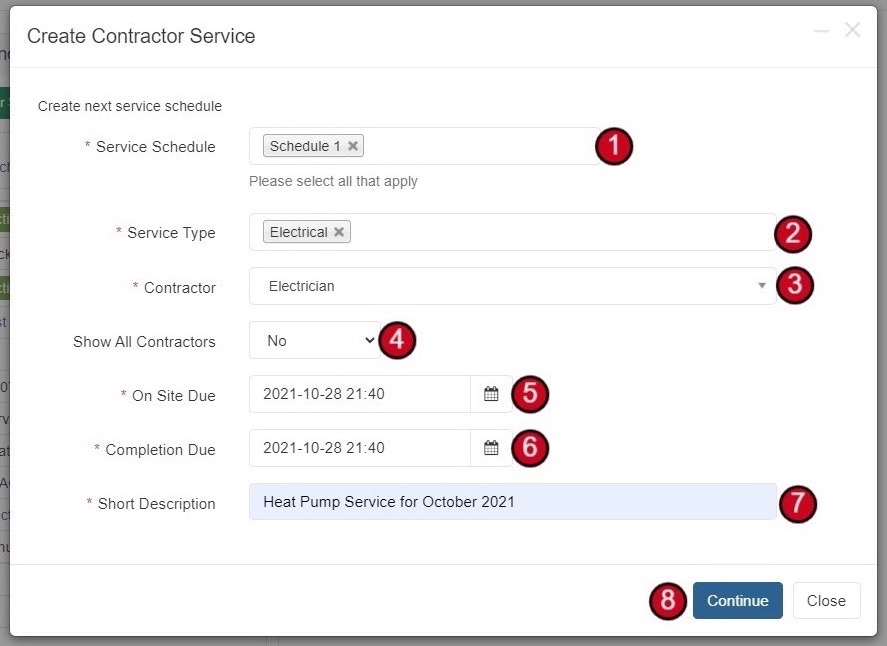
Select Service Schedule
Select the relevant Service Schedule (Schedule 1, 2, 3, or 4)
-
Select Service Type
Select the relevant Service Type - this will help filter through the available Contractors
-
Select Contractor
Select the relevant Contractor. If the Contractor you need is not in the list, select Yes for "Show All Contractors"
-
Set On Site Due Date
Add the On Site Due date. If there isn't one, just use the Completion Due date
-
Set Completion Due Date
Add the Completion Due date
-
Add Short Description
Add Short Description of works (e.g., "Heat Pump Service for October 2021")
-
Click Continue
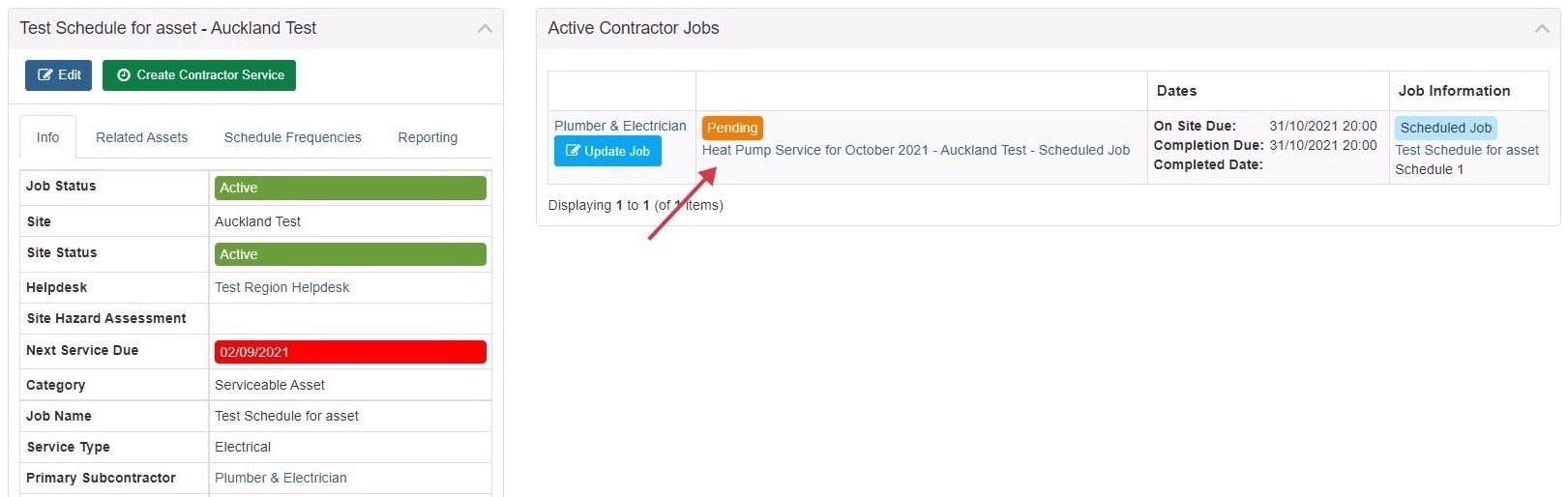
The Contractor Job is now created! The Contractor will now accept this job and assign it to a technician.

Bulk Creation of Contractor Service Jobs
Creating Contractor Service Jobs in bulk is easy - use the filters to set your criteria.
Important Notes for Bulk Creation:
- Only use this function for Scheduled Jobs that have matching criteria - i.e., Schedules Due at the same time and for the same Contractor
- If your Scheduled Job/s have more than one frequency type, use the filters and create bulk jobs one schedule at a time
Bulk Creation Steps
-
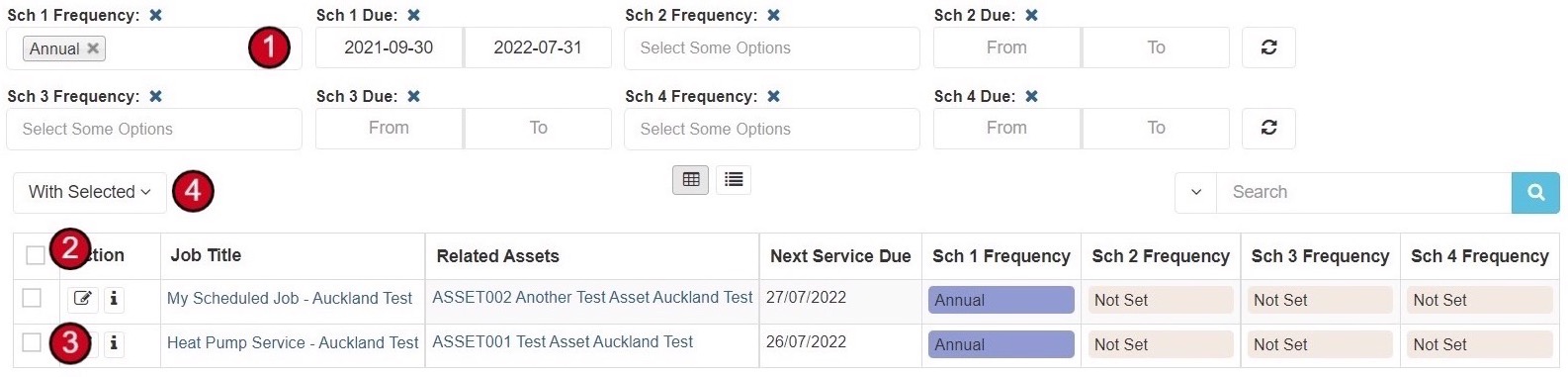
Apply Filters
Choose one frequency at a time and apply a date range. For example: "Show me all the jobs that have Annual as Scheduled 1 and is due during July"
-
Select Jobs
Either:
- Check the box in the top left corner of the table to select all showing in the list, or
- Individually check the box next to each job you want to use
-
Create Contractor Service
Hover over With Selected and select Create Contractor Service
-
Complete the Form
The process is exactly the same as creating a single Contractor Service Job:
- Select the relevant Service Schedule
- Select the relevant Service Type
- Select the relevant Contractor
- Add the On Site Due date
- Add the Completion Due date
- Add Short Description of works
-
Click Continue
Multiple Contractor Jobs will be created with the same information. The Contractor will now accept these jobs and assign them to technicians as required.
Best Practice: Using the search function and/or the frequency and date range filters can help you narrow down the list before bulk creation.
Available Schedule Frequencies
The system supports various frequency options for scheduled maintenance: