Building Warrant of Fitness (BWOF) Management
Track and manage your building warrants of fitness, link scheduled maintenance jobs to BWOF records, and ensure compliance with building safety requirements.
In This Guide
Overview
A building owner needs to renew a building's warrant of fitness (BWOF) every 12 months, signing, issuing and publicly displaying it to prove the building's life safety systems (called specified systems) have been maintained and inspected.
What is a BWOF? A Building Warrant of Fitness (BWOF) is a legal document that certifies a building's specified systems (fire alarms, sprinklers, emergency lighting, etc.) have been properly maintained and inspected. It must be renewed annually and publicly displayed in the building.
Although not all property types require a BWOF, Facilitease has built-in functions to allow you to track and manage your BWOF as and when required.
Key Features
- BWOF Tracking - Store and manage BWOF certificates with issue and expiry dates
- Scheduled Maintenance Linking - Flag Scheduled Maintenance Jobs as BWOF-related
- Centralized View - See and access all relevant maintenance items that impact your BWOF from inside the BWOF record
- Expiry Alerts - Track overdue BWOFs and those due within 3 months
Site Information Required
A BWOF typically has a unique CS number and requires the Legal description noted in the documentation. This information is held against the Site record:
- BWOF / SRN / CS Number - Unique identifier for the BWOF
- Legal Description - Legal land description
- Street Address - Physical address of the building
Adding a New Building Warrant of Fitness
Who Can Add: Adding a New BWOF to a Site can be done by a System Administrator, HelpDesk, or Contact Centre.
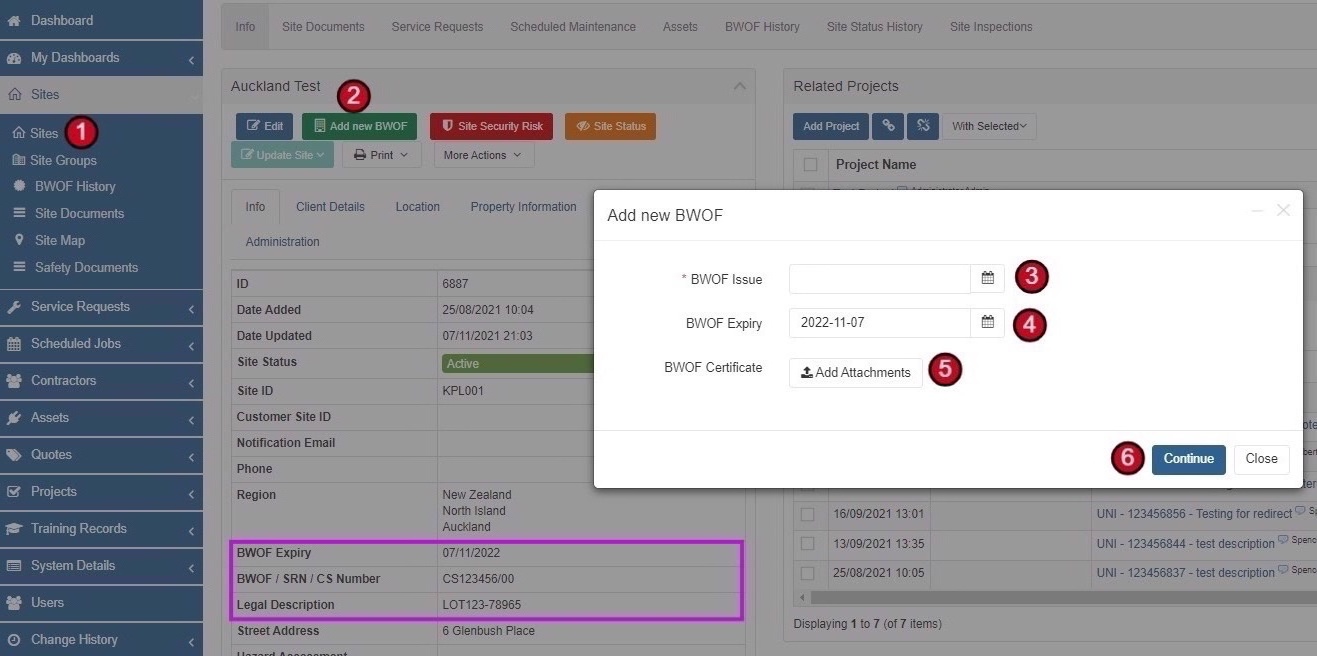
This is created from inside the Site Record as shown in the steps below:
-
Navigate to Sites
Select Sites, then Sites from the side menu
-
Open the Site Record
Find and open the site that requires a BWOF
-
Click Add New BWOF
Click the Add new BWOF button
-
Enter BWOF Issue Date
Add the BWOF Issue date - this can be found on the BWOF Certificate
-
Enter BWOF Expiry Date
Add the BWOF Expiry date - this can also be found on the BWOF Certificate
-
Attach BWOF Certificate
Attach the BWOF Certificate - this is normally in a PDF format
-
Click Continue
The BWOF is now created and linked to the site
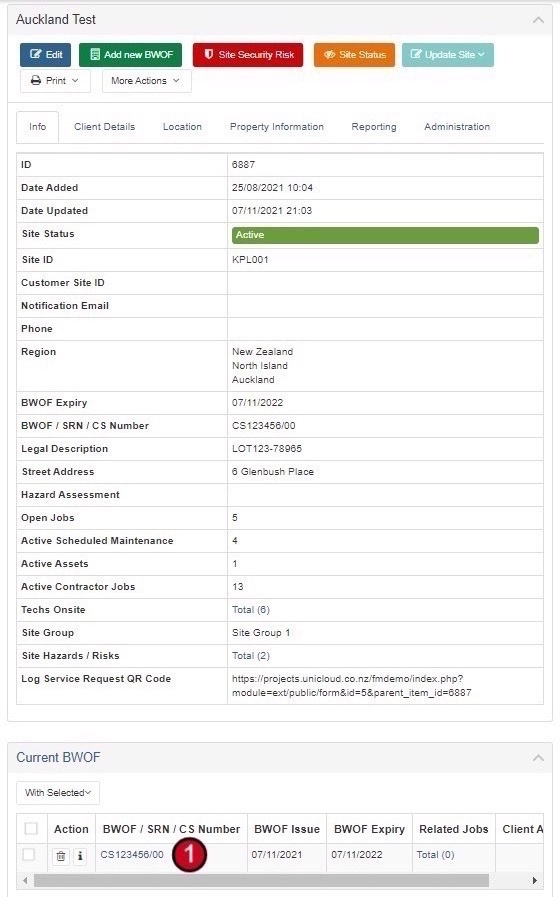
Automatic Updates: The BWOF Expiry field showing in the Site is overwritten each year when the new BWOF has been issued.
Viewing BWOFs
There are multiple ways to view and access BWOF records in the system:
Method 1: View from Inside Site Record
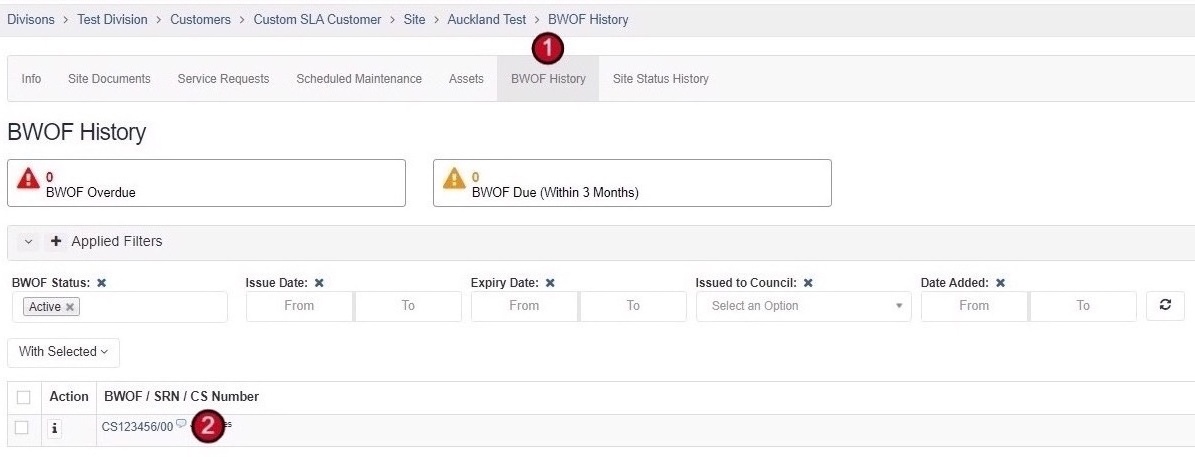
From inside the Site record, scroll down to see the Current BWOF section.
-
Open Site Record
Navigate to the site you want to view
-
Scroll to Current BWOF
Scroll down to see the Current BWOF section at the bottom of the record
-
Click to View Details
Click on the BWOF to see more details
Method 2: View from Site Top Ribbon
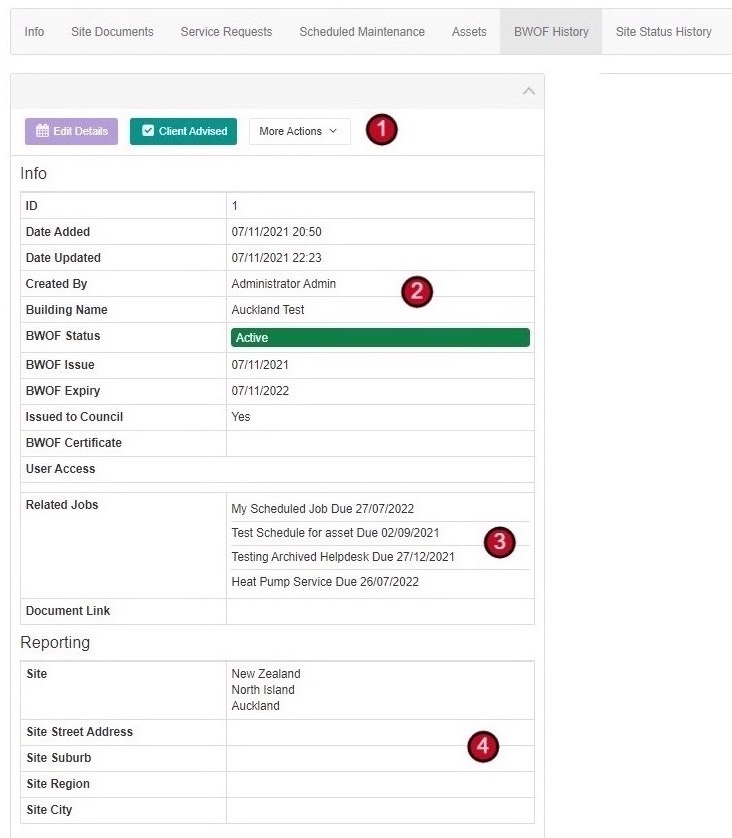
From inside the Site record, you can view all BWOF history for that site, including the current one.
-
Click BWOF History Tab
Click on BWOF History from the top ribbon while inside the site record
-
Select BWOF
Select the current active BWOF by clicking the BWOF you wish to open
Method 3: View All BWOFs (Side Menu)
You can view all your BWOFs in one centralized place.
-
Navigate to BWOF History
Select Sites, then BWOF History from the side menu
-
Select BWOF
Click on the BWOF you wish to open
Filtering Large Portfolios: Larger portfolios would have many BWOFs listed so there are filters provided to help narrow down the list. There are also counters at the top of this page showing any Overdue BWOFs and what BWOFs are due in the next three months.
BWOF Record Contents
Inside the BWOF record you will be able to see:
- Preview of BWOF Certificate - Displayed on the right-hand side
- Main Information - Issue and expiry dates, BWOF status
- Related Jobs - Any Scheduled Jobs related to this BWOF
- Site Details - Address, region, and other site information
Info Section
- ID
- Date Added / Updated
- Created By
- Building Name
- BWOF Status
- BWOF Issue Date
- BWOF Expiry Date
- Issued to Council
Related Jobs
- Linked Scheduled Maintenance Jobs
- Job Names and Due Dates
Reporting (Site Details)
- Site Name
- Street Address
- Suburb / Region / City
Editing a BWOF
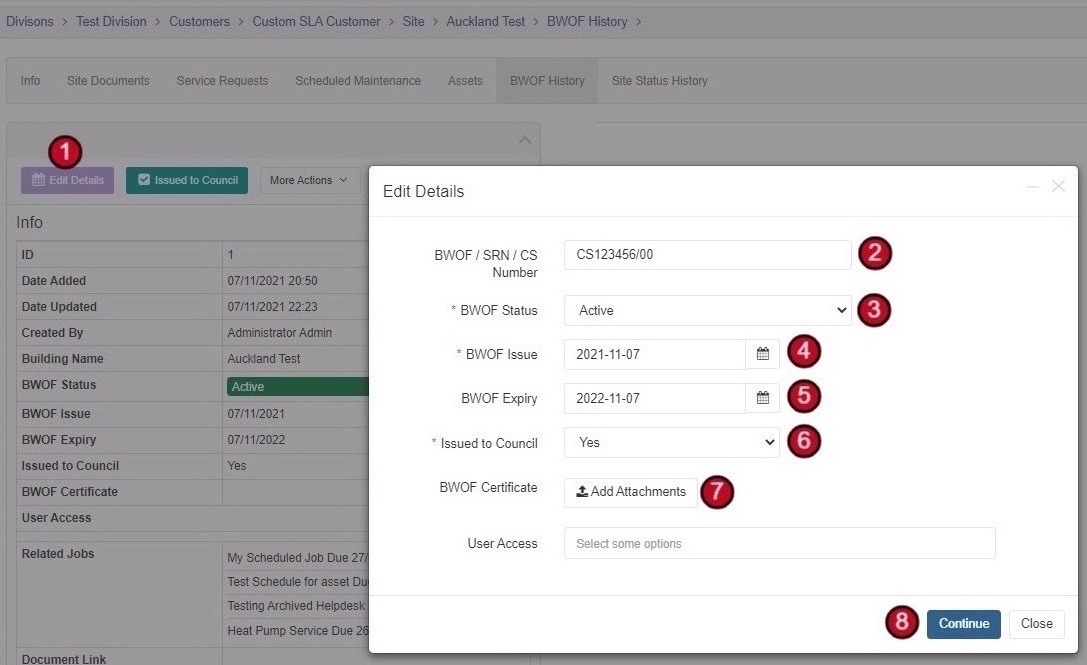
Follow the steps below to edit any of the current BWOF's information:
-
Click Edit Details
Click Edit Details from inside the BWOF record
-
BWOF / SRN / CS Number
Adjust unique reference if required. This reference is not normally changed - you should only adjust this if the current one is incorrect
-
BWOF Status
This can remain as Active. It will become archived automatically once the next BWOF is issued
-
BWOF Issue Date
Only adjust this if it's incorrect
-
BWOF Expiry Date
Only adjust this if it's incorrect
-
Issued to Council
Change if required (Yes/No)
-
BWOF Certificate
Change attachment if required
-
Click Continue
Click Continue once changes have been made
Important: The BWOF / SRN / CS Number is a unique identifier and should only be changed if the current one is incorrect. This number is typically assigned by the local council.
Linking Scheduled Jobs to BWOF
You can flag Scheduled Maintenance Jobs as BWOF-related, which links them to the site's BWOF record. This allows you to see and access all relevant maintenance items that impact your BWOF from inside the BWOF record.
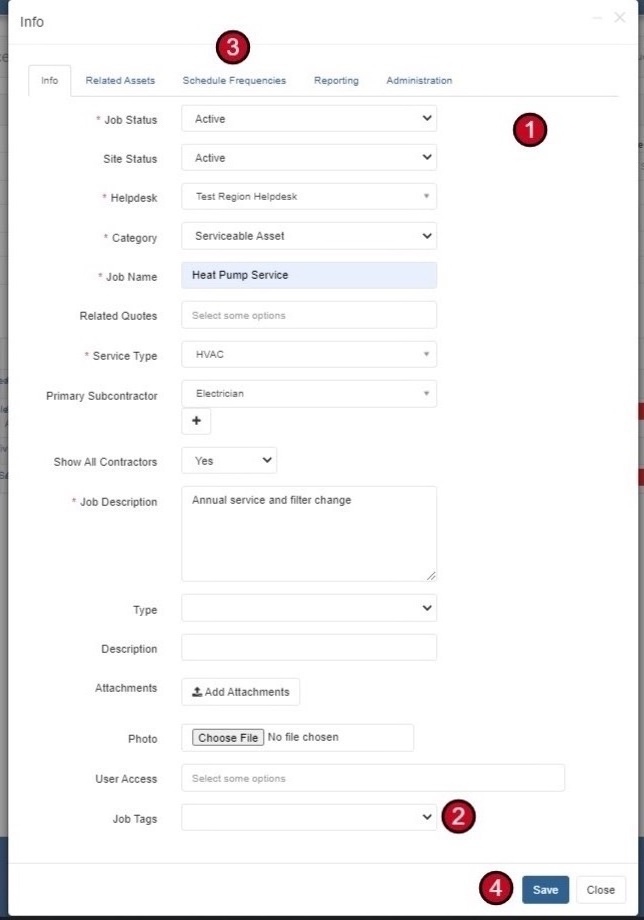
Option 1: Flag When Creating a New Scheduled Job
When setting up a new Scheduled Maintenance Job, you can identify at that stage if your Scheduled Job is linked to the site's Building Warrant of Fitness:
-
Fill in Job Details
Fill in all the details as required (Helpdesk, Category, Job Name, Service Type, etc.)
-
Select BWOF Job Tag
In the Job Tags field, select BWOF
-
Complete Remaining Details
Add the remainder of the job's details by going through the required tabs (Related Assets, Schedule Frequencies, etc.)
-
Click Save
Select Save when you're done
Option 2: Flag an Existing Scheduled Job
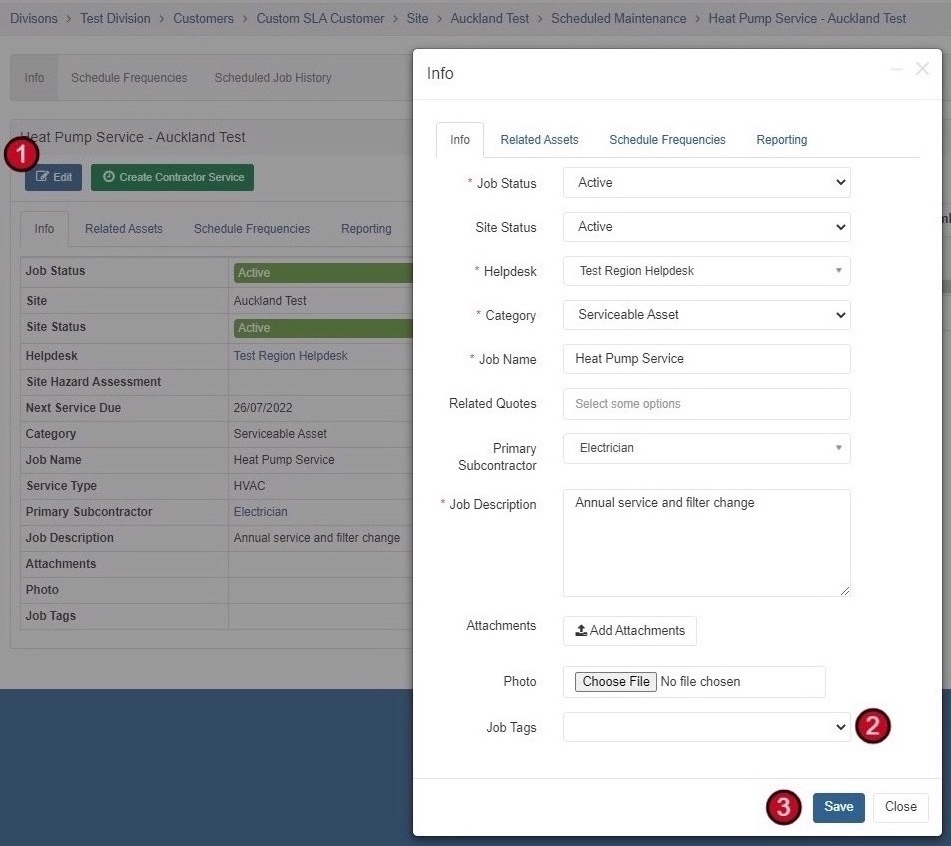
If you have an existing Scheduled Maintenance job set up that has not yet been flagged as BWOF, follow these steps to add it:
-
Open the Scheduled Job
Navigate to the Scheduled Maintenance Job you want to flag
-
Click Edit
Click the Edit button from inside the Scheduled Maintenance Job
-
Add BWOF Tag
Go down to Job Tags and add BWOF
-
Click Save
Click Save to apply the changes
Related Guide: For more detailed information on setting up Scheduled Maintenance Jobs, see the Scheduled Maintenance Guide.
Common Specified Systems
These are typical life safety systems that may be covered by a BWOF and require regular scheduled maintenance: