Edit Global Lists
Manage and customize the global lists used throughout the Facilitease system including regions, service types, and more.
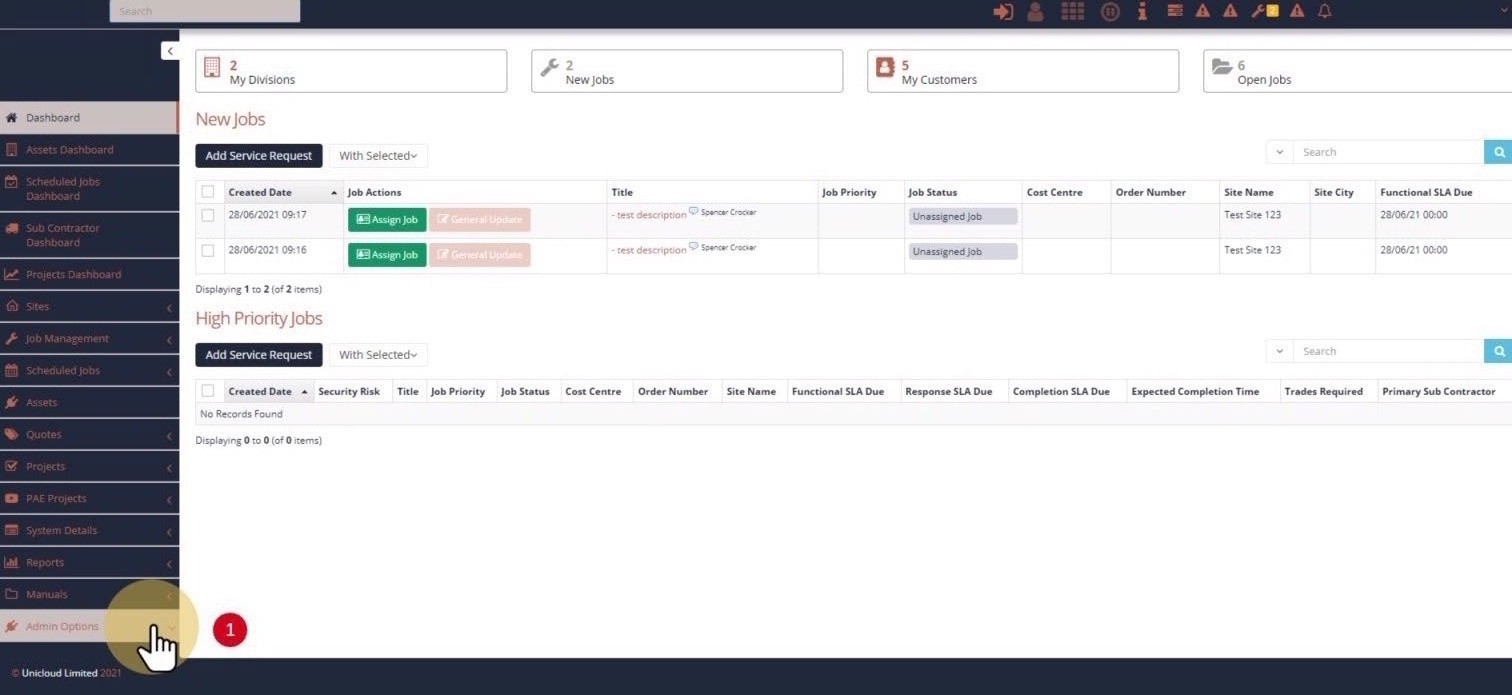
1. Select Admin Menu
To access Global Lists:
- Select Admin Options menu from the main navigation
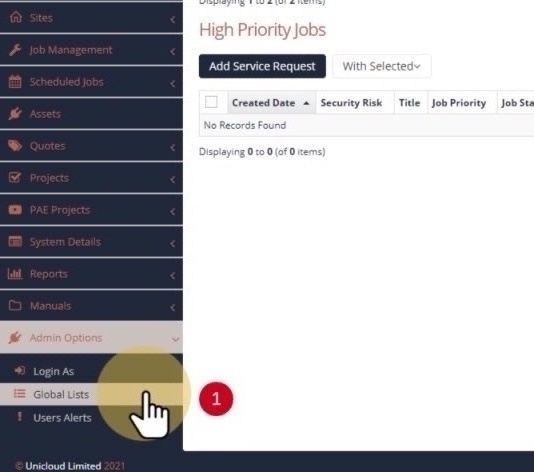
2. Global List Menu
- Select Global Lists from the Admin Options dropdown menu
3. Select Global List
The Global Lists screen shows all available lists in the system:
- Select the global list you wish to edit (e.g., Geographical Regions, Service Types, Priority Levels, etc.)

Global lists are used throughout the system to populate dropdown menus and selection fields. Changes to these lists will affect all areas where they are used.
4. Sorting
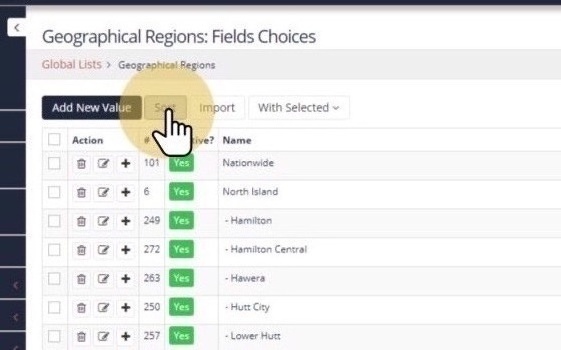
You can sort your list by clicking the Sort button at the top of the list.
5. Drag and Drop
Simply drag and drop your list items to reorder them. This allows you to quickly reorganize items in the order you prefer them to appear in dropdown menus.

6. Add New Items
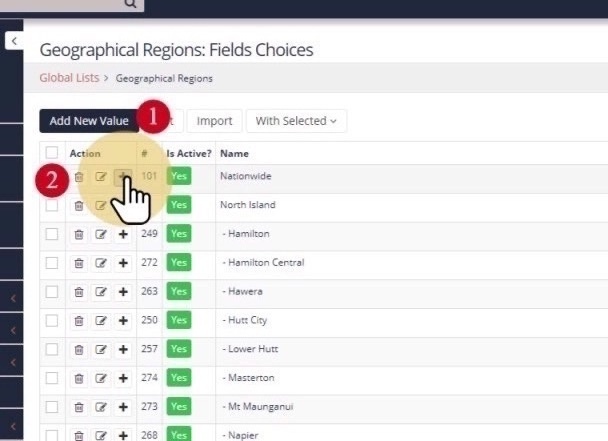
- Add New Value - Click "Add New Value" to add a new item to the list
- Add Child Item - Click the plus sign (+) next to an existing item if you wish to add a child list item (for hierarchical lists)
7. Enter List Options
When adding or editing a list item, you can configure the following:
- Parent - Select a parent or choose "Top Level" for root items
- Name - Name your item (this is what will appear in dropdown menus)
- Default - If selected, this item will prepopulate whenever the list is used
- Background Color - Select the background highlight colour for when this item is selected
- Sort Order - You can manually enter the sort order or use the drag and drop method

Tip: Use the drag and drop method for quick reordering, or manually enter sort order numbers for precise control.