Login as User
Learn how administrators can temporarily log in as another user to test views, permissions, and functionality.
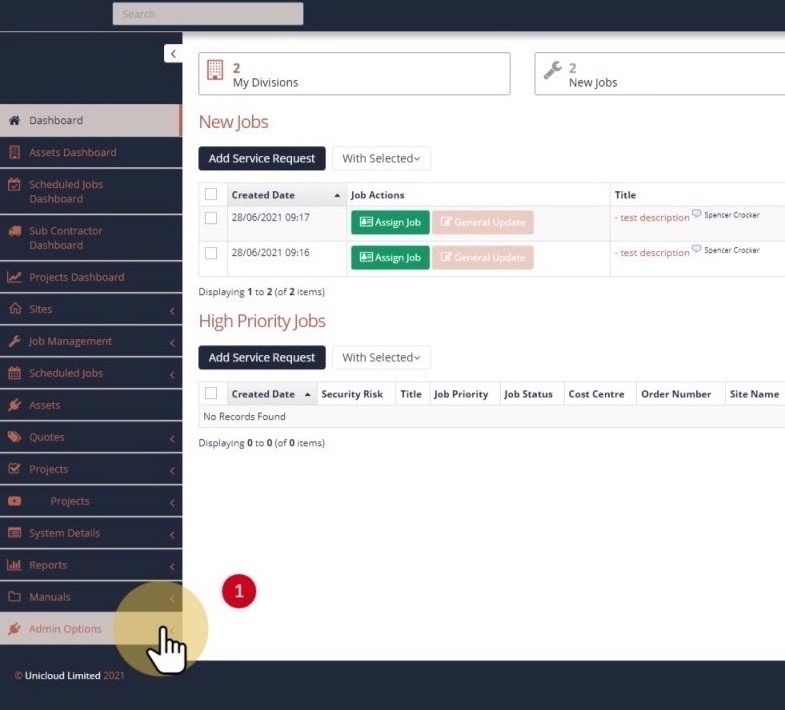
1. Dashboard Screen
Start from the main dashboard screen.
2. Admin Menu
- Click on Admin Options in the main menu
3. Login as User
- Select Login As from the Admin Options dropdown
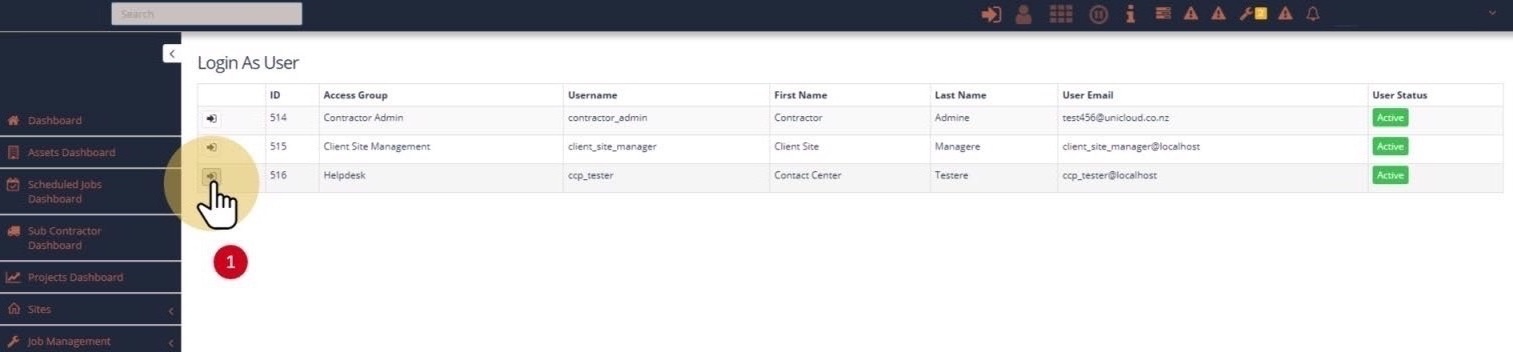
4. Select User
You will see a list of users you can log in as:
- Click the Login as User button next to the user you wish to log in as
5. Login
- Click Login to proceed as the selected user
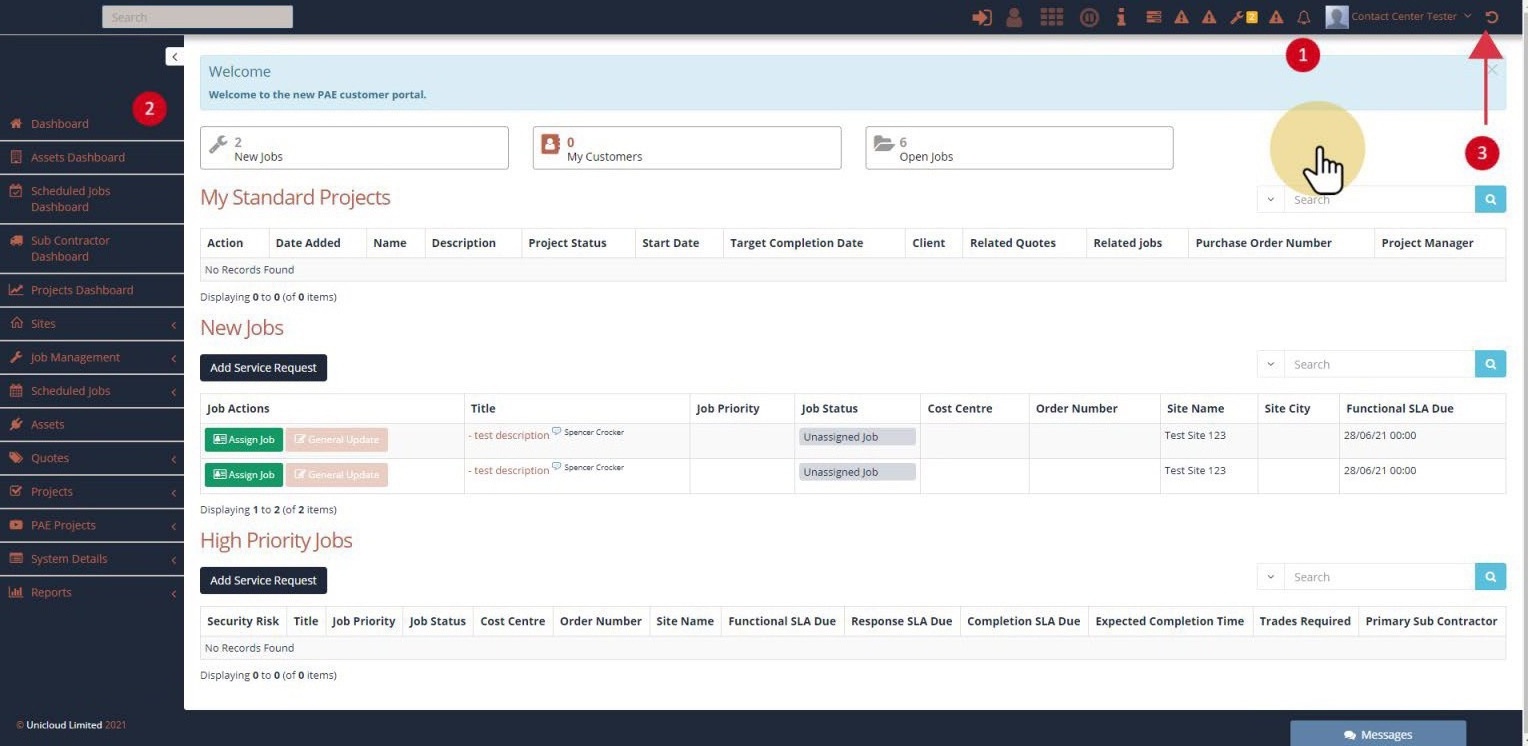
6. Test User
Once logged in as another user:
- You are now logged in as the selected user
- Interact with the system as the user to test views and functions
- Click the half circle icon (return icon) in the top bar to return to your own login
Important: Any actions you take while logged in as another user will be recorded as actions by that user. Use this feature responsibly for testing and support purposes only.
Use Case: This feature is particularly useful for troubleshooting user issues, testing permission configurations, or verifying what a specific user can see and do in the system.