Manage Training Courses
Learn how to create, manage, and track training courses for users, including required courses for technicians before job assignment.
Overview
Facilitease allows you to record and track training for users. When courses are applied to a Contractor or Contractor Technician and the course is set to required, the technician will not be available to be assigned to jobs until they have confirmed course completion.
Automatic Application: On creation of a course or a new user, the course requirements will be automatically added to the new users' records based on the course settings.
Key Features
- Required Courses: Flag courses as required for job assignment
- Completion Deadlines: Set timeframes for course completion
- Recurring Courses: Configure courses that need periodic renewal
- Targeted Application: Apply courses to specific divisions, customers, regions, or contractors
- Compliance Tracking: Monitor training status across all users
Course Dashboard
The course dashboard provides an overview of all training courses in the system.
Accessing the Dashboard
- Select Training Records - Click Training Records from the main menu.
- Select Training Courses - Click Training Courses from the dropdown menu to view all courses.
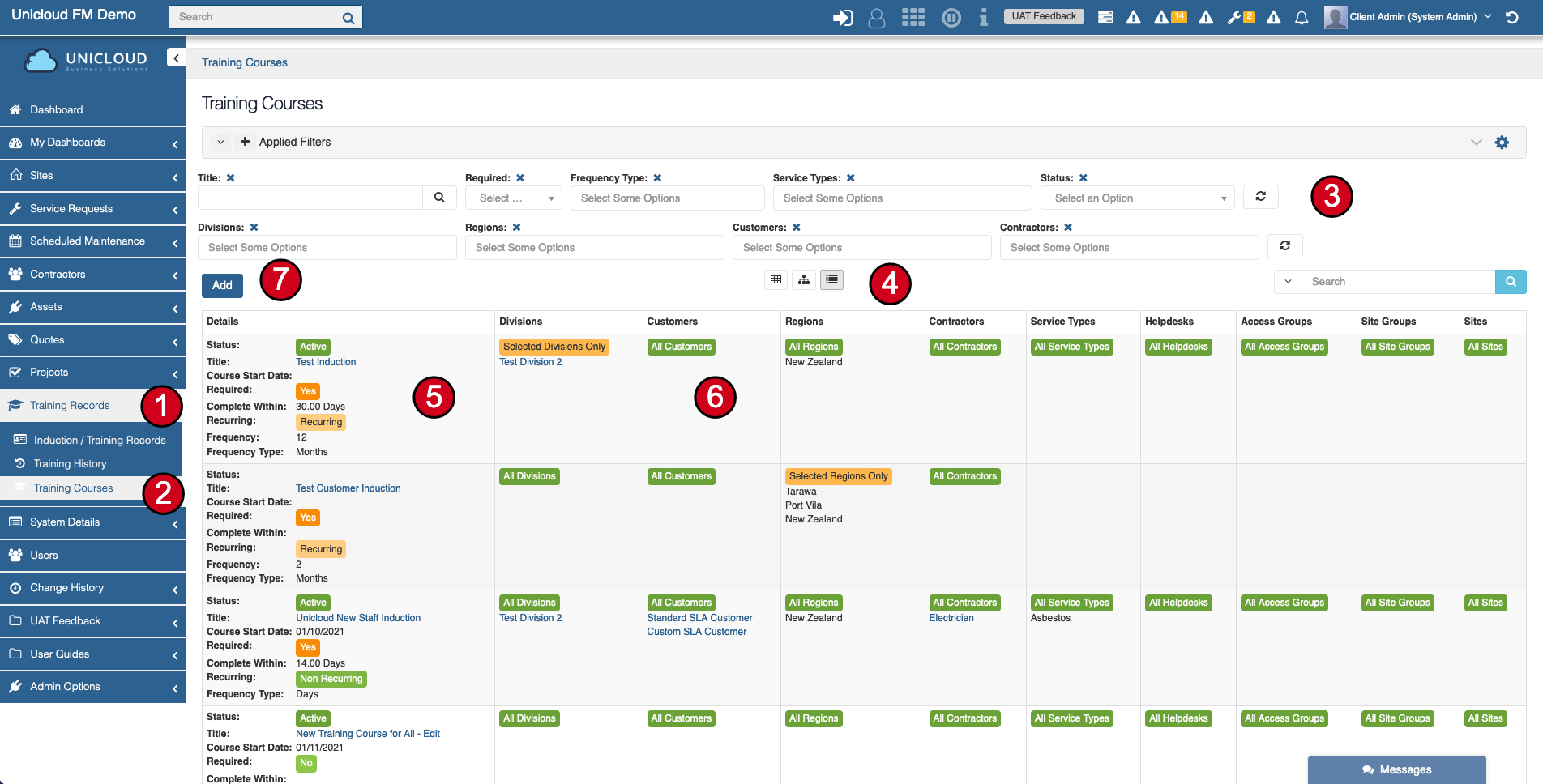
Dashboard Features
| Column | Description |
|---|---|
| Active | Indicates if the course is currently available |
| Title | Name of the course - click to view course contents |
| Course Start Date | Allows preloading courses with a future start date - completion dates are calculated from this |
| Required | Flags if the course is required - technicians cannot be assigned to jobs without completing required courses |
| Complete Within | Number of days a user has to complete the course |
| Recurring | If set, users must renew their course completion based on the specified frequency |
Example Courses
Test Induction
Active
Required: Yes
Complete Within: 30 Days
Recurring: 12 Months
Unicloud New Staff Induction
Active
Required: Yes
Complete Within: 14 Days
Recurring: Non Recurring
Add a Training Course
Create a new training course by clicking the Add button on the Training Courses dashboard.
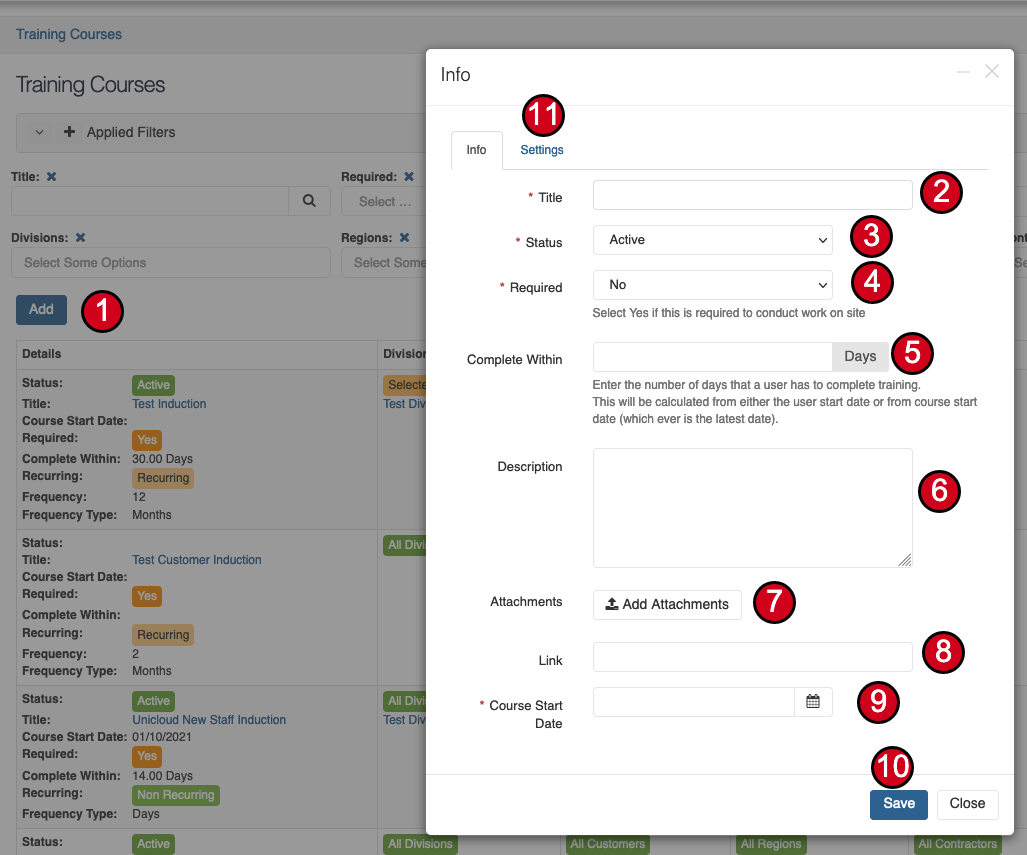
Steps to Add a Course
- Click Add - Click the Add button on the Training Courses dashboard to create a new course.
- Enter Course Name - Enter a descriptive title for your training course.
- Set Status - Set the course to Active to make it available to users.
- Configure Required Setting - Set to Yes if this course is required for technicians before they can be allocated to jobs.
- Set Complete Within - Enter the number of days a user has to complete the course. This calculates the required completion date.
- Add Description - Enter a description of the course content and objectives.
- Add Attachments/Links - Attach training materials or add external links to training resources.
- Set Course Start Date - Set when the course becomes active. Completion dates are calculated from this date.
- Configure Settings - Click the Settings tab to define where the course will be applied.
- Save - Click Save to create the course. Settings will be applied to relevant users within a few minutes.
External Links: When you add an external link, if possible the page or document will be displayed inside the course for easy access.
Course Settings
The Settings tab allows you to define where a course will be applied and configure recurring options.
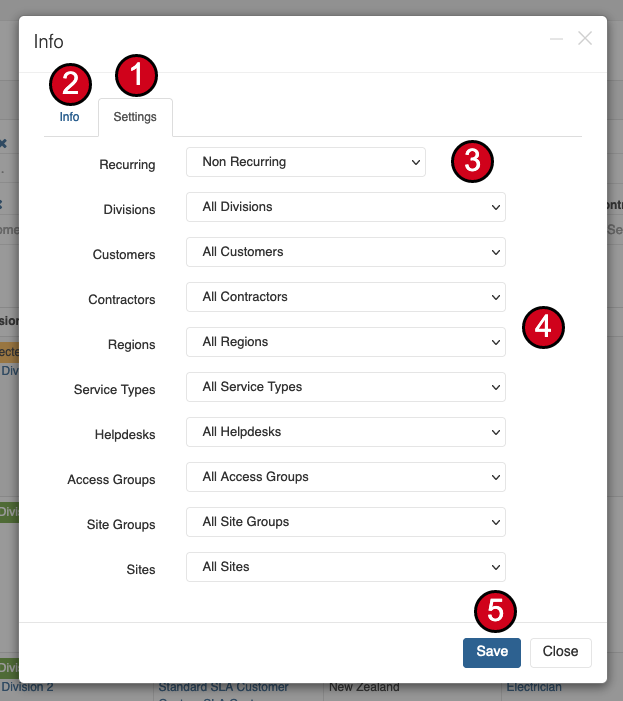
Setting Options
| Setting | Description |
|---|---|
| Recurring | If set, users must renew their course completion at the specified frequency (days/months) |
| Divisions | Apply to all divisions or select specific ones |
| Customers | Apply to all customers or select specific ones |
| Contractors | Apply to all contractors or select specific ones |
| Regions | Apply to all regions or select specific ones |
| Service Types | Apply to all service types or select specific ones |
| Helpdesks | Apply to all helpdesks or select specific ones |
| Access Groups | Apply to all access groups or select specific ones |
| Site Groups | Apply to all site groups or select specific ones |
| Sites | Apply to all sites or select specific ones |
Recurring Courses: If a course is set to recurring, users will need to renew their course history in their account prior to the due date. The course will renew based on the frequency entered (e.g., every 12 months).
Training Records
The Training Records screen shows all training records for users you have access to.
Accessing Training Records
- Select Training Records - Click Training Records in the main menu.
- Select Induction / Training Records - Click Induction / Training Records from the dropdown menu.
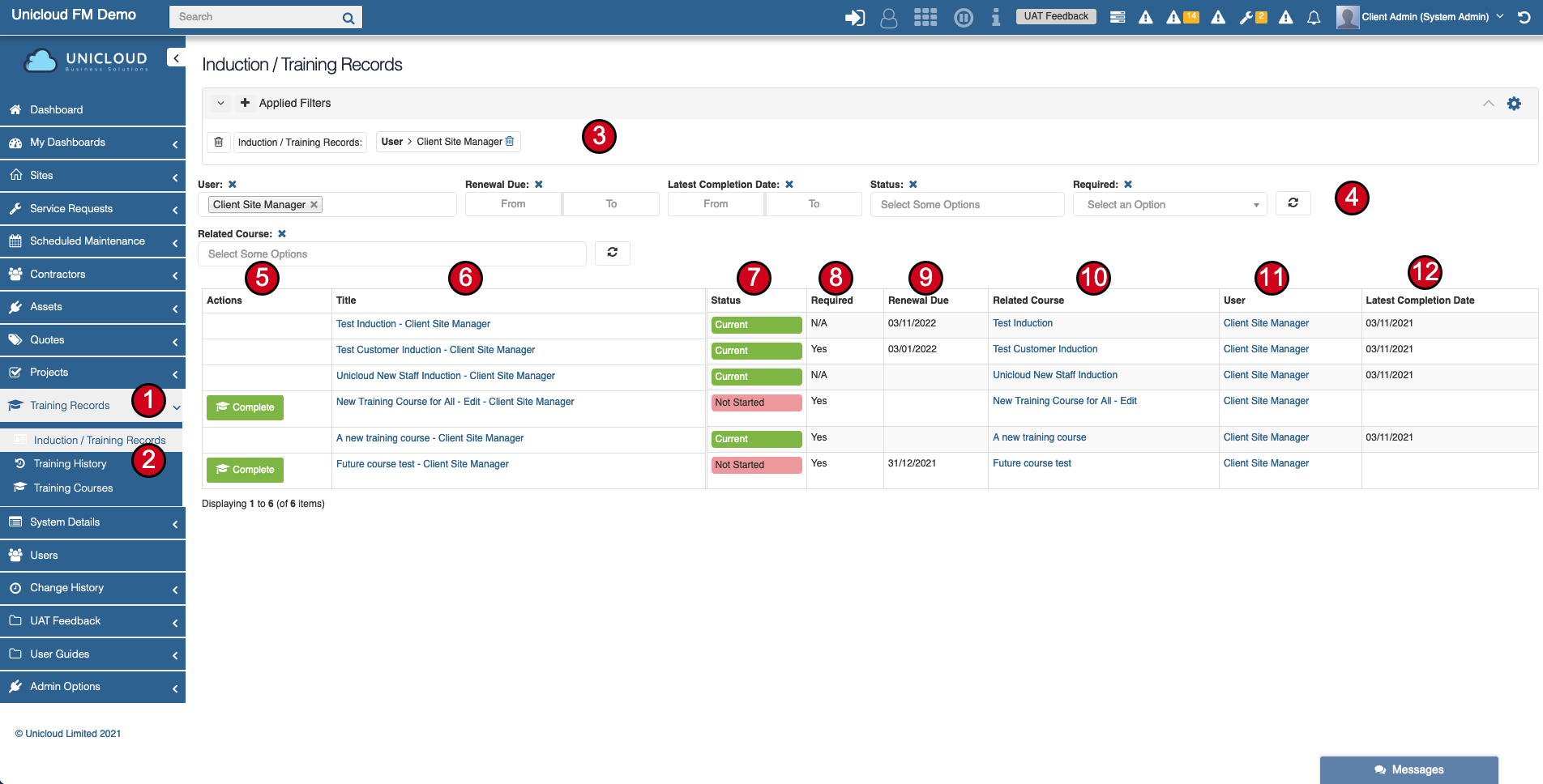
Status Meanings
| Status | Description |
|---|---|
| Current | Course is current and no action required (view in conjunction with Required flag) |
| Not Started | The user has not completed this course yet |
| Renewal Due | User needs to review and update course history/completion |
Required Field Values
- No: Course is not required for job assignment
- Yes: Course is required - technician may not be assigned to jobs if not completed
- N/A: Course is no longer applicable to the user but history remains
Job Assignment Block: If a course is required for technicians and the Renewal Date is overdue, they will not be able to be assigned to a job until the course is completed or renewed.
Training History
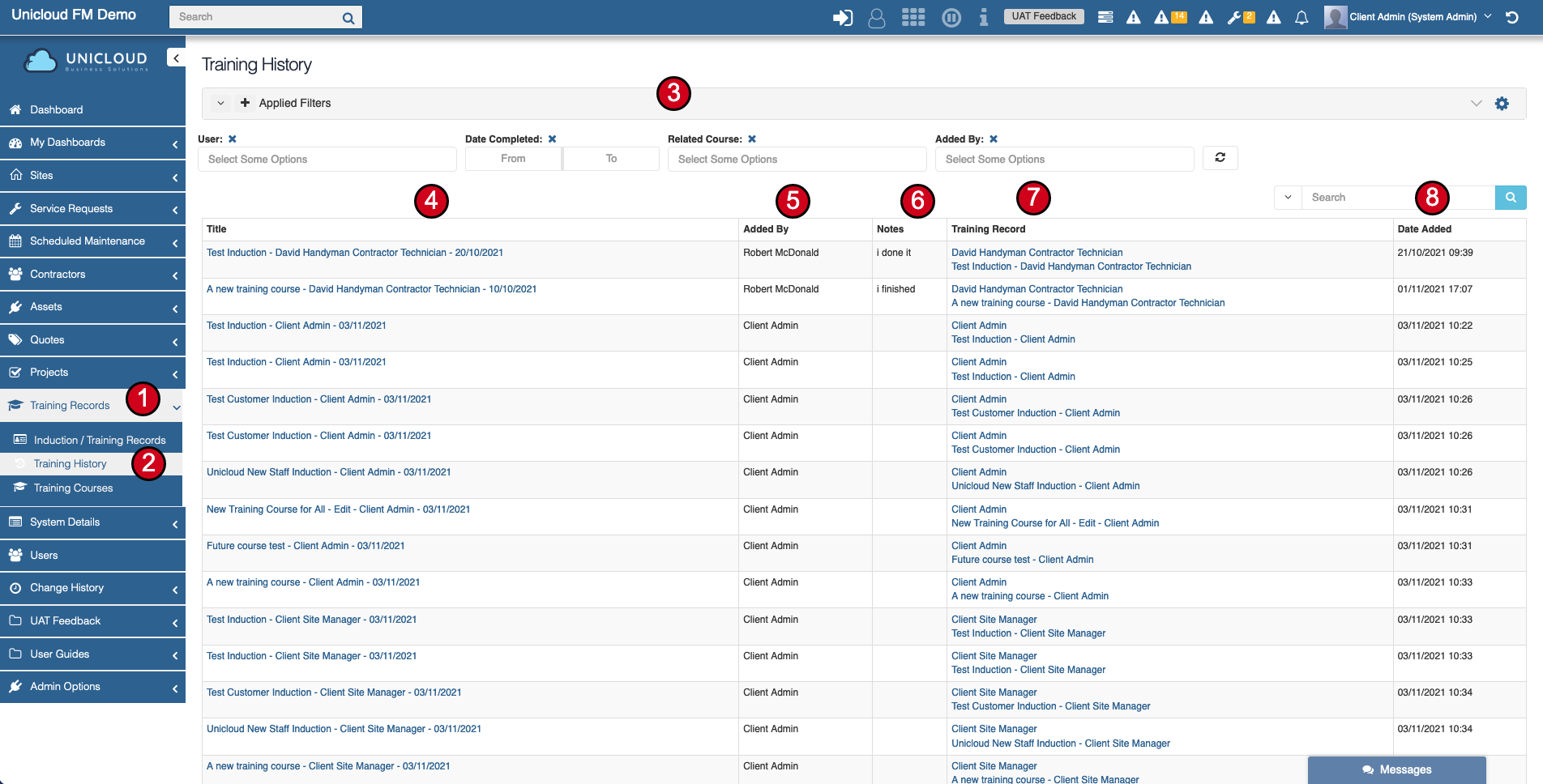
Training History shows all course history and renewals for all users you can see.
Accessing Training History
- Select Training Records - Click Training Records in the main menu.
- Select Training History - Click Training History in the dropdown menu.
History Information
| Column | Description |
|---|---|
| Title | History record title: Username - Course - Last Completion Date |
| Added By | Who added the history record |
| Notes | Notes from the user at the time of adding the history |
| Training Record | Link to the main course record for that user |
| Date Added | When the history record was added to the system |
View User Training Records
You can view a specific user's training records directly from their user profile.
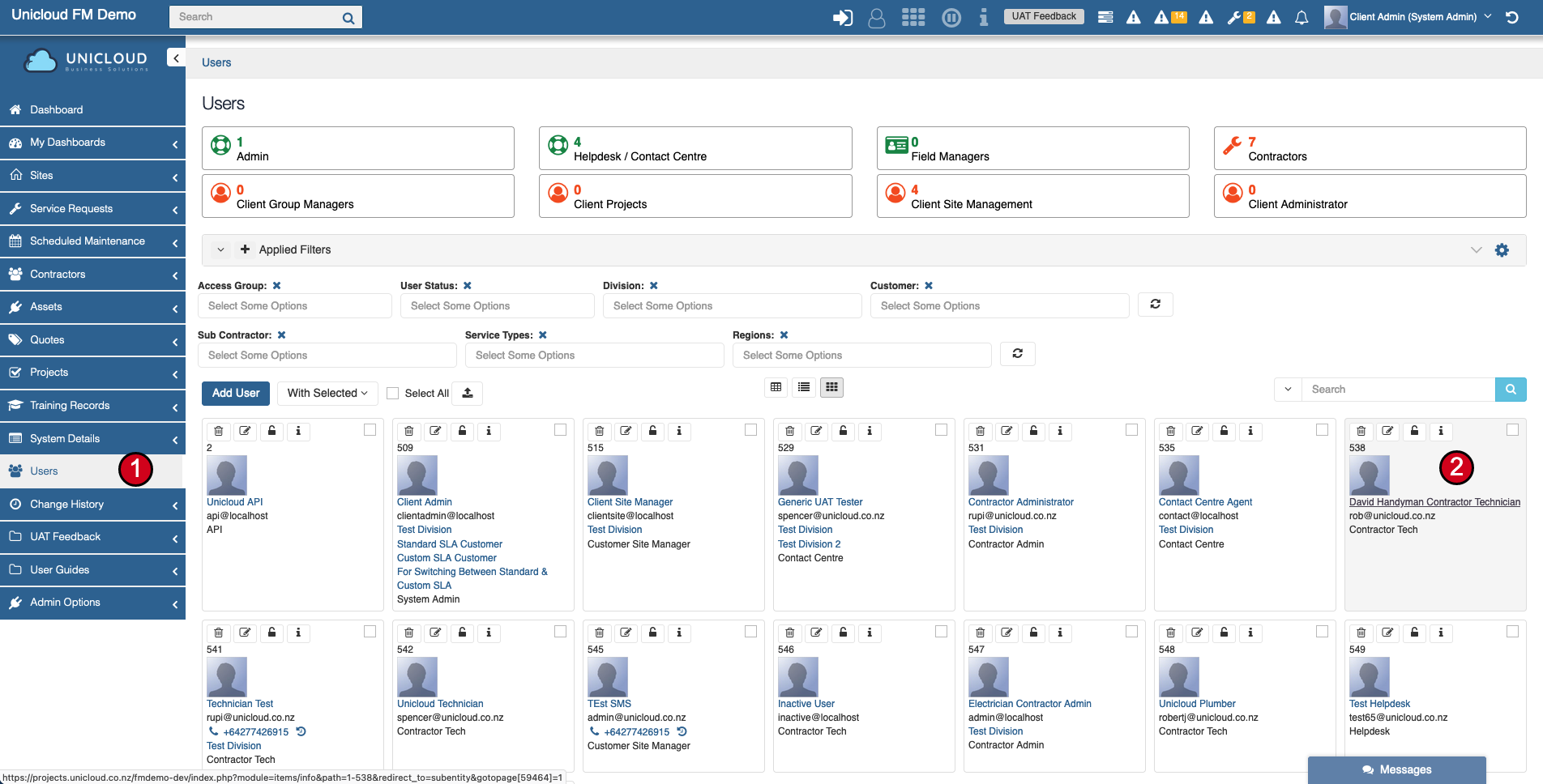
- Select Users - Click Users from the main menu.
- Select User - Click on the user's name or the 'i' button to view their record.
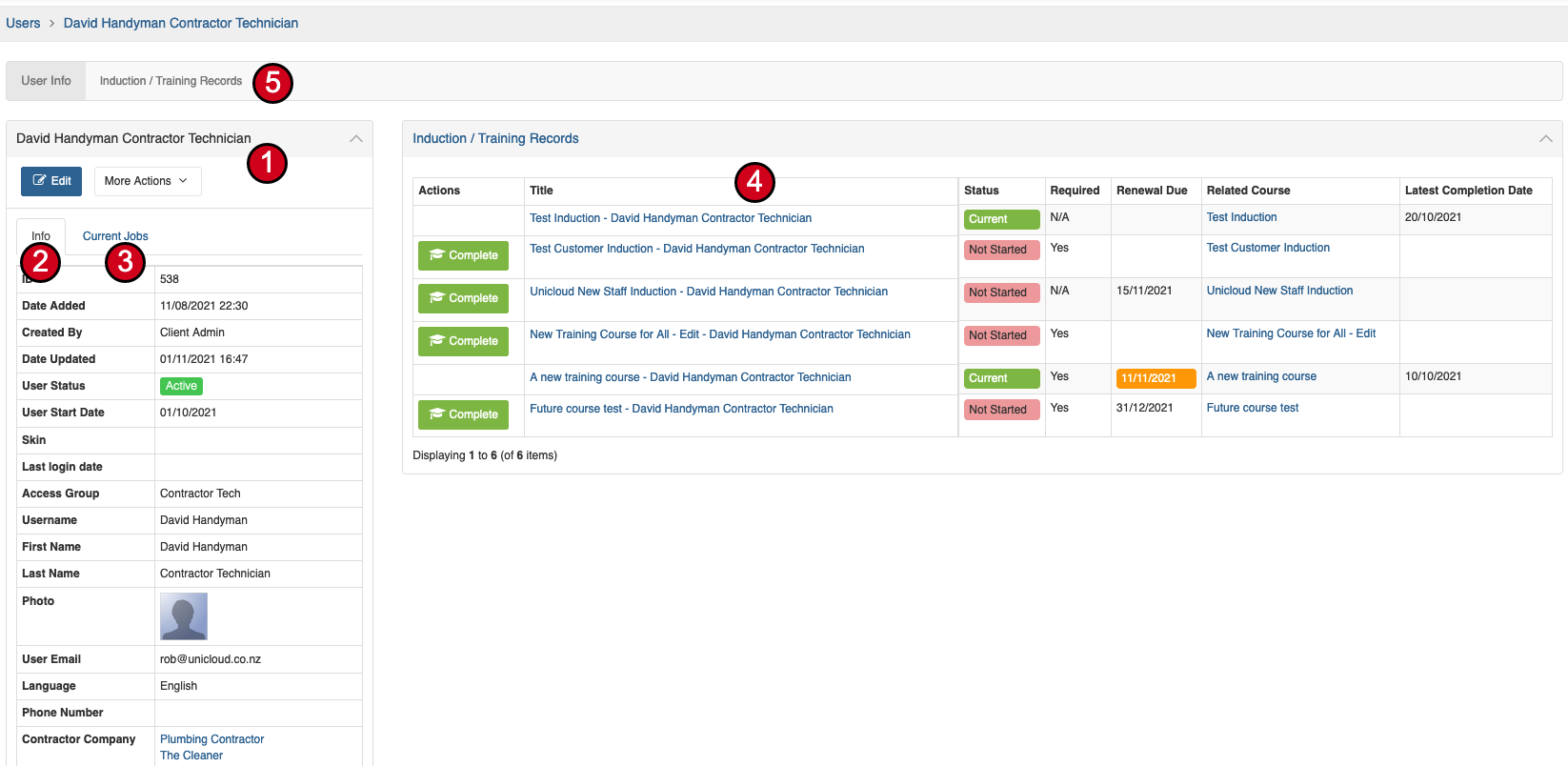
- View Training Tab - Click the Induction / Training Records tab to see all courses for that user.
User Training Information
- User Info Tab: View main user details
- Current Jobs Tab: View current technician activity (if user is a technician)
- Training Records Tab: View all courses and their status for this user
- Complete Button: If a course requires completion, users can click to mark complete
Quick Completion: From the Training Records list, users with required courses showing as "Not Started" will have a Complete button to mark the course as done.