BWOF Management
Learn how to manage Building Warrants of Fitness (BWOF) in Facilitease, including creating new BWOFs, viewing history, and linking scheduled maintenance jobs to compliance requirements.
On this page
Overview
A Building Warrant of Fitness (BWOF) is a legal requirement in New Zealand. Building owners must renew their BWOF every 12 months, signing, issuing, and publicly displaying it to prove the building's life safety systems (called specified systems) have been maintained and inspected.
Not All Properties Require a BWOF: While not all property types require a BWOF, Facilitease provides the functionality to track and manage your BWOFs when needed. You can also link scheduled maintenance jobs to BWOF records for complete compliance visibility.
BWOF Status Types
Active
Current valid BWOF within expiry date
Due (Within 3 Months)
BWOF expiring soon, renewal required
Overdue
BWOF has expired, immediate action needed
Archived
Historical BWOF replaced by newer certificate
Key BWOF Information
Each BWOF record in Facilitease contains important compliance information:
- BWOF/SRN/CS Number - Unique compliance schedule reference number
- Legal Description - Property legal description from the site record
- Issue Date - When the current BWOF was issued
- Expiry Date - When the BWOF expires (12 months from issue)
- BWOF Certificate - Attached PDF of the official certificate
- Related Jobs - Linked scheduled maintenance jobs that impact the BWOF
Adding a New BWOF
New BWOFs are created from within the Site record. This can be done by System Administrators, Helpdesk operators, or Contact Centre staff.
Site Information: The CS number and Legal Description required for BWOF documentation are already stored in the Site record, making it easy to reference this information when creating a new BWOF.
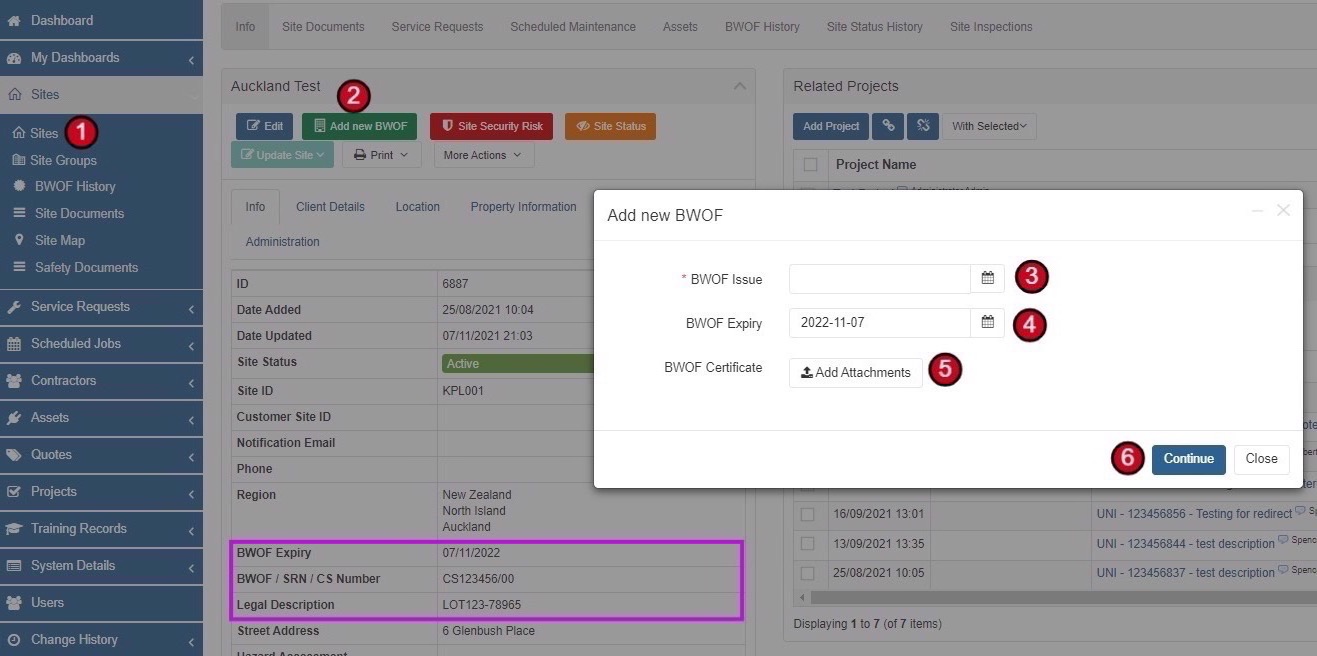
-
Navigate to the Site
Select Sites from the side menu, then click Sites again to view the sites list. Open the site that needs a new BWOF.
-
Click Add New BWOF
From inside the Site record, click the Add new BWOF button in the action bar.
-
Enter BWOF Issue Date
Enter the BWOF Issue date. This can be found on your BWOF Certificate.
-
Enter BWOF Expiry Date
Enter the BWOF Expiry date. This is also found on the certificate and is typically 12 months from the issue date.
-
Attach BWOF Certificate
Upload the BWOF Certificate document (usually in PDF format).
-
Save the BWOF
Click Continue to create the new BWOF record.
Site BWOF Information
The following information from the Site record is automatically available for BWOF documentation:
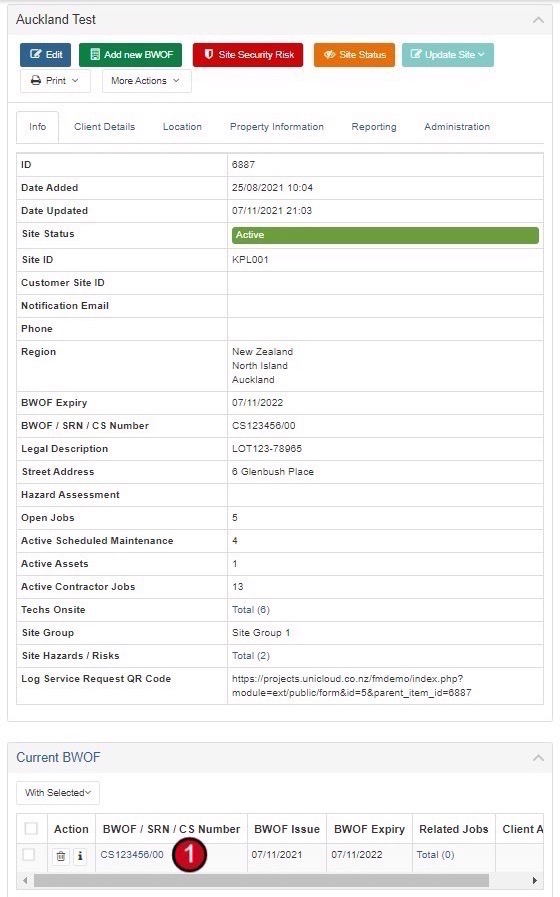
Automatic Expiry Update: When a new BWOF is issued, the BWOF Expiry field on the Site record is automatically updated with the new expiry date.
Viewing BWOFs
There are multiple ways to access BWOF records in Facilitease, depending on whether you need to view a specific site's BWOF or all BWOFs across your portfolio.
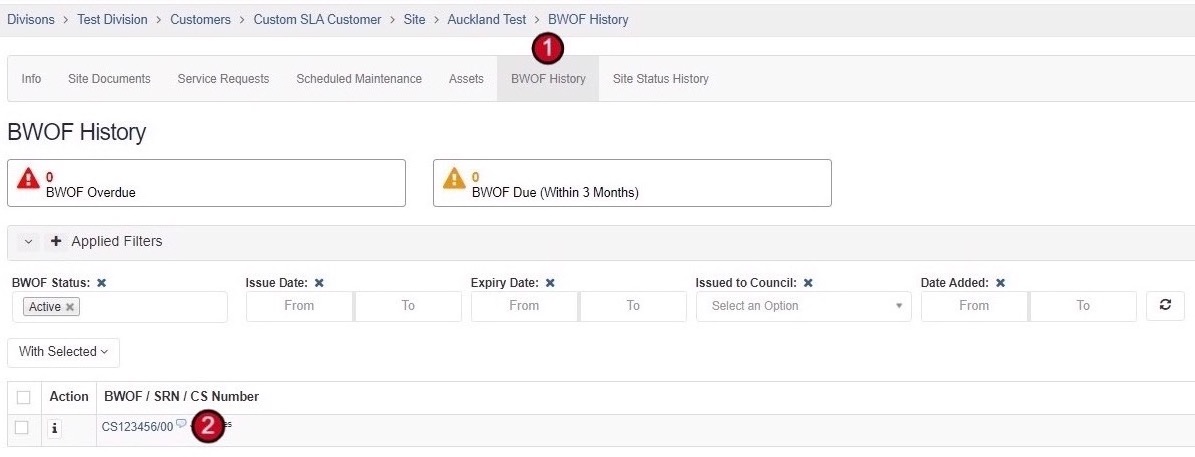
BWOF History Dashboard
When viewing all BWOFs from the side menu, you'll see helpful counters at the top of the page:
Available Filters
For larger portfolios, use the filters to narrow down the BWOF list:
| Filter | Description |
|---|---|
| Site | Filter by specific site name |
| BWOF Status | Active, Archived, or all statuses |
| BWOF / SRN / CS Number | Search by compliance schedule number |
| Issue Date | Filter by date range when BWOF was issued |
| Expiry Date | Filter by date range when BWOF expires |
| Issued to Council | Filter by whether BWOF has been submitted to council |
| Date Added | Filter by when the record was created in the system |
Understanding the BWOF Record
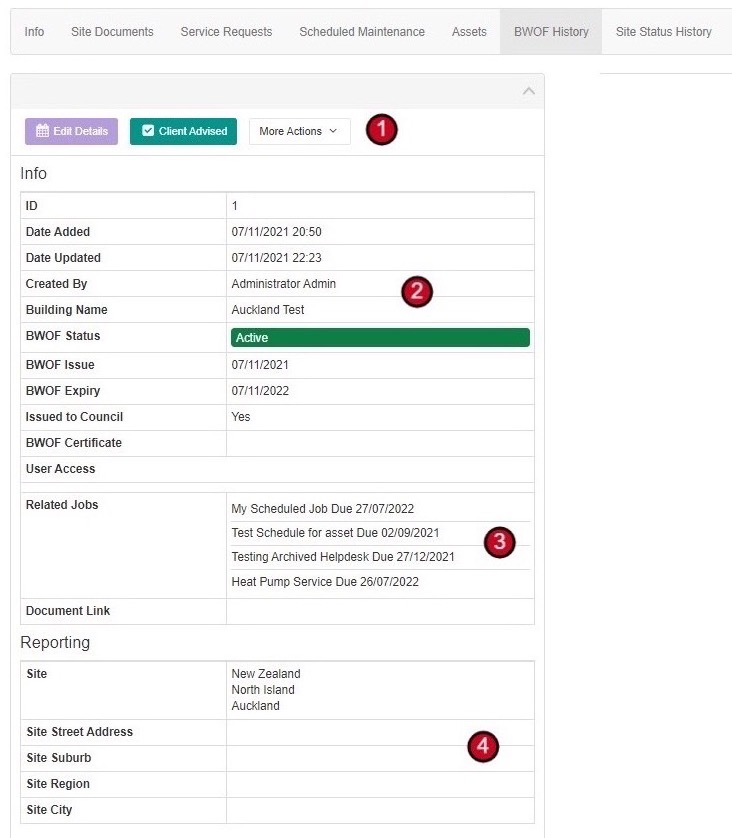
The BWOF record provides a comprehensive view of the building's compliance status, including attached certificates and linked maintenance jobs.
Info
Related Jobs
Reporting (Site Details)
Key Areas of the BWOF Record
- Action Buttons - Edit Details, mark as Client Advised, and access More Actions for additional functions
- Info Section - Main BWOF information including issue and expiry dates, status, and council submission status
- Related Jobs - All scheduled maintenance jobs linked to this BWOF for compliance tracking
- Reporting Section - Site details for reporting purposes
- Certificate Preview - Visual preview of the attached BWOF certificate (displayed on the right side)
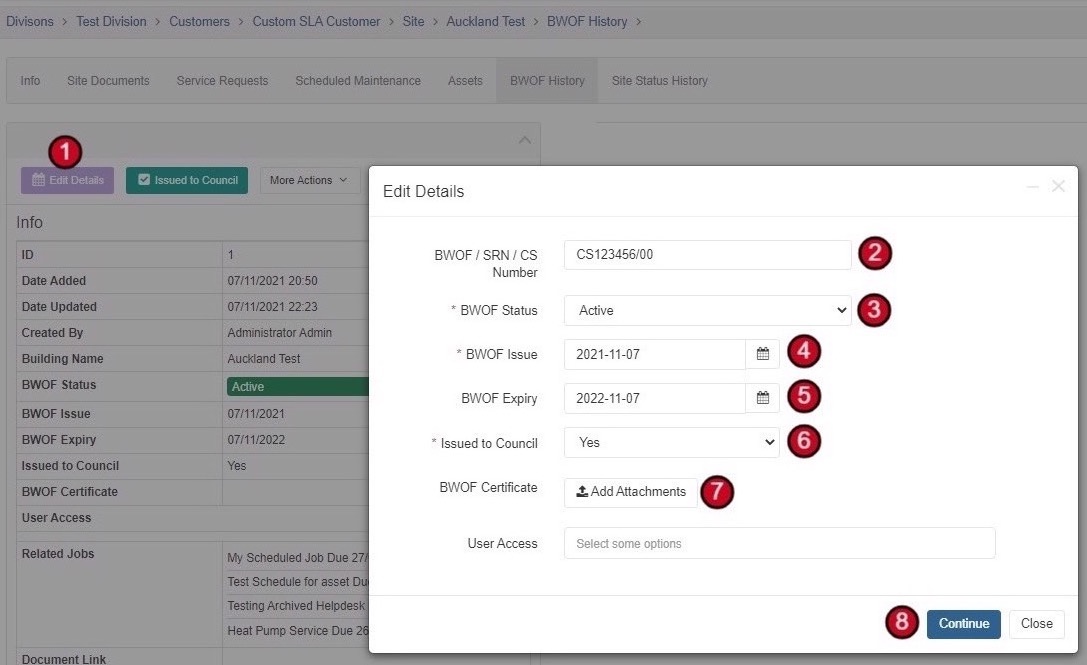
Editing a BWOF
You can edit BWOF details if corrections are needed. However, most fields should only be changed if the original entry was incorrect.
-
Open the BWOF Record
Navigate to the BWOF you wish to edit using one of the viewing methods described above.
-
Click Edit Details
Click the Edit Details button from inside the BWOF record.
-
Make Required Changes
Update the fields as needed (see field descriptions below).
-
Save Changes
Click Continue once changes have been made.
Editable Fields
| Field | Description | When to Edit |
|---|---|---|
| BWOF / SRN / CS Number | Unique compliance schedule reference | Only if the original entry was incorrect |
| BWOF Status | Active or Archived | Leave as Active - will auto-archive when new BWOF is issued |
| BWOF Issue | Date the BWOF was issued | Only if the original date was incorrect |
| BWOF Expiry | Date the BWOF expires | Only if the original date was incorrect |
| Issued to Council | Whether BWOF has been submitted | Update when council submission status changes |
| BWOF Certificate | Attached certificate document | Update if wrong document was attached |
| User Access | Users who can view this BWOF | Update as needed for access control |
Automatic Archiving: When a new BWOF is issued for a site, the previous BWOF is automatically archived. You don't need to manually change the status.
Linking Scheduled Jobs to BWOF
Scheduled maintenance jobs that impact a building's BWOF compliance can be flagged as BWOF-related. This links them to the BWOF record, allowing you to see all relevant maintenance items from within the BWOF record.
Benefits of Linking Jobs: By flagging scheduled maintenance jobs as BWOF, you can view all compliance-related maintenance activities directly from the BWOF record, ensuring nothing is missed before renewal.
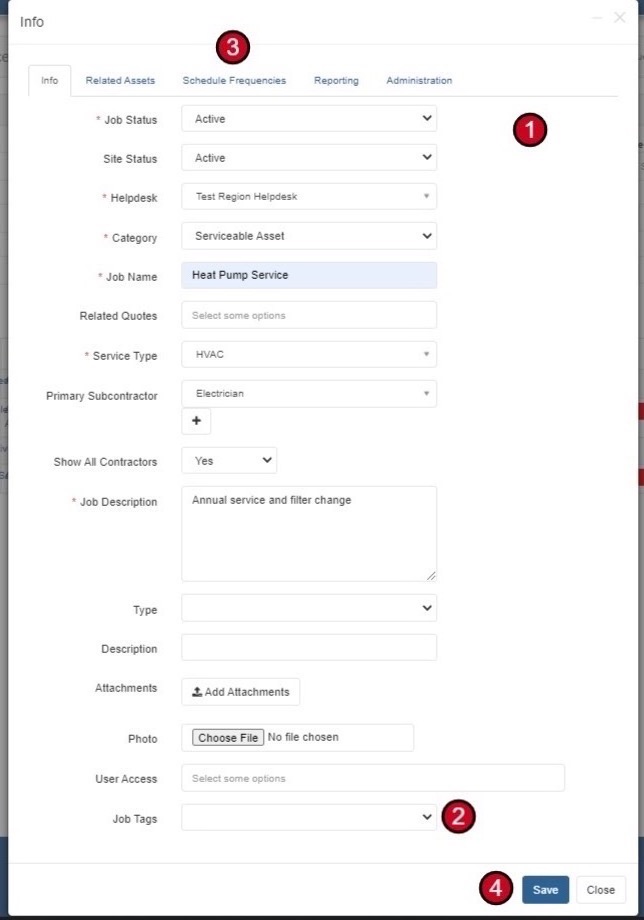
Method 1: Flag During Job Creation
When creating a new Scheduled Maintenance Job, you can immediately identify it as BWOF-related:
-
Create New Scheduled Job
Follow the normal process to create a new Scheduled Maintenance Job, filling in all required details.
-
Add BWOF Job Tag
In the Job Tags field, select BWOF from the dropdown options.
Job TagsBWOF ▼ -
Complete Job Setup
Continue through the remaining tabs (Related Assets, Schedule Frequencies, Reporting, Administration) to complete the job setup.
-
Save the Job
Click Save when finished. The job will now appear in the Related Jobs section of the site's BWOF record.
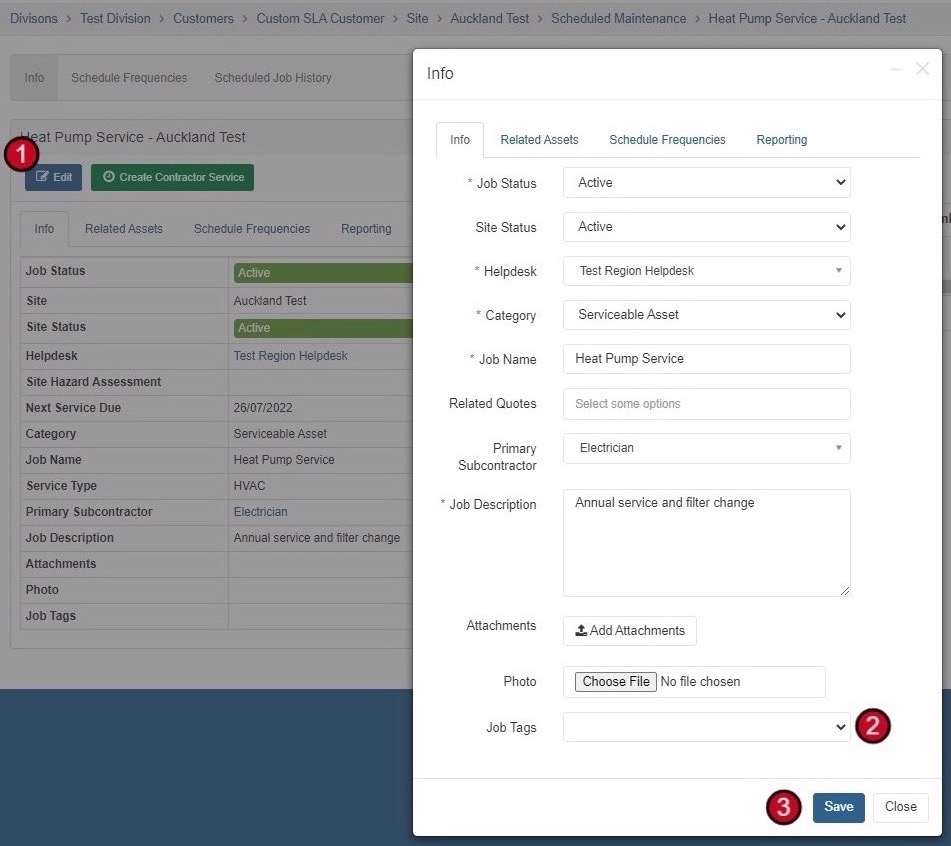
Method 2: Flag Existing Scheduled Job
If you have existing scheduled maintenance jobs that should be linked to BWOF but weren't tagged during creation:
-
Open the Scheduled Job
Navigate to the existing Scheduled Maintenance Job record.
-
Click Edit
Click the Edit button from inside the Scheduled Maintenance Job.
-
Add BWOF Tag
Scroll down to Job Tags and add BWOF to the tags.
-
Save Changes
Click Save to update the job. It will now be linked to the site's BWOF record.
BWOF Tag in Job Records
Jobs flagged as BWOF will display the tag in their record:
Related Guide: For detailed instructions on setting up Scheduled Maintenance Jobs, see the Scheduled Maintenance Setup Guide.